GPT Image 2.6 Guide: Looping GIFs, SVG Logos and Draw-to-Edit
A practical GPT Image 2.6 guide for Nenis: what changed from 2.5, looping GIFs from 3 credits, SVG logos, circling what to change on a photo, Quick or Careful planning, every credit price, and when to pick Flare or Sunburst.
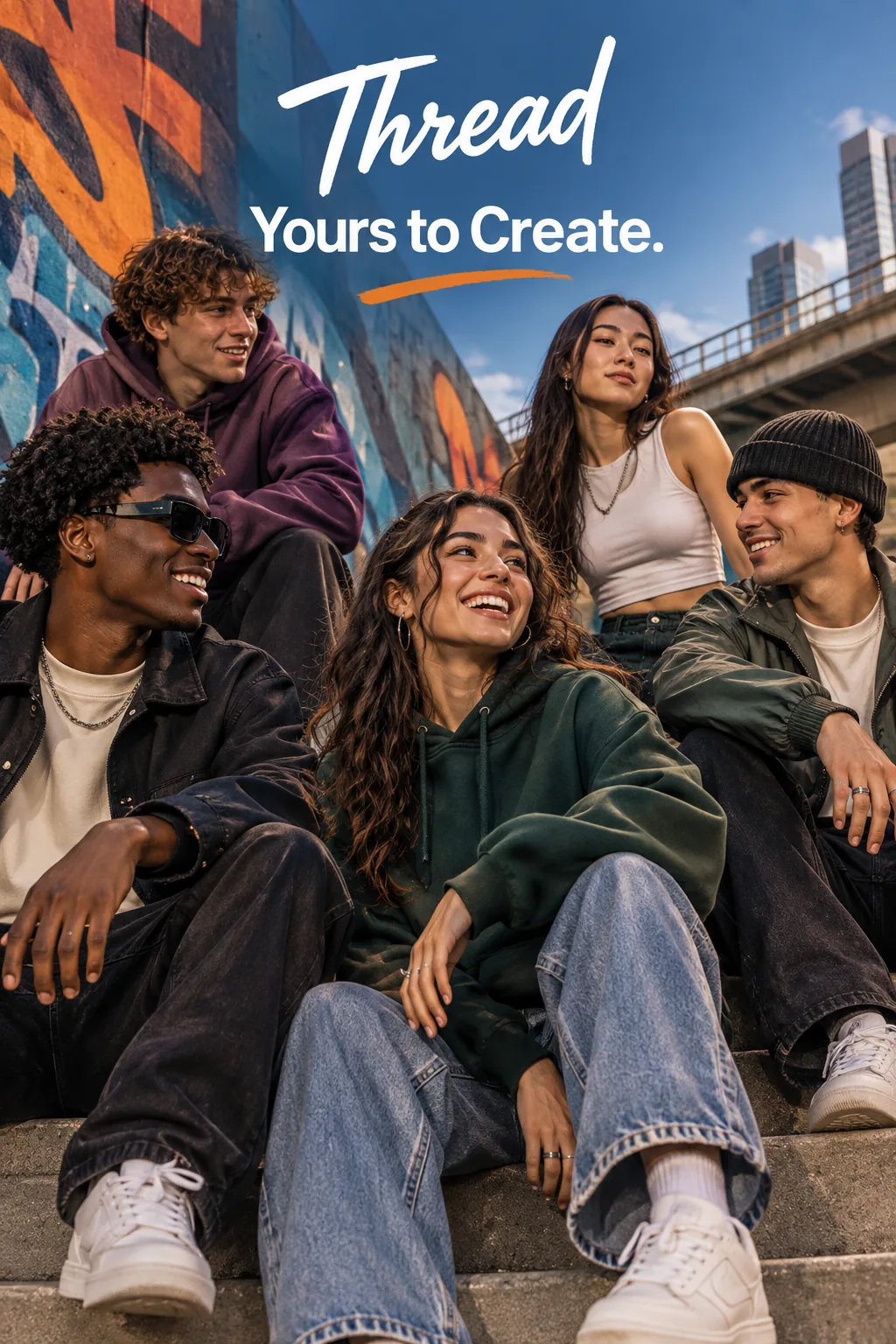
GPT Image 2.6, OpenAI's newest image model, replaced GPT Image 2.5 in Nenis on November 7, 2026. It comes in the same two versions, Flare and Sunburst, with the same sizes, quality levels and reference photos, and adds three things no other model in Nenis does: looping GIFs, SVG files, and drawing on a photo to show what should change.
The short version: use Flare for most work, including GIFs and SVGs, and Sunburst when an edit has to be exact. Everything you made with 2.5 stays in your gallery, and your 2.5 prompts work on 2.6 as they are.
What changed from GPT Image 2.5
OpenAI released GPT Image 2.6 on November 4, 2026, with "adjustable complexity, SVG generation, and animated GIF generation". Here is what that means in Nenis:
| In Nenis | GPT Image 2.5 | GPT Image 2.6 |
|---|---|---|
| Formats | Image, Transparent | Image, Transparent, Animated (GIF), Vector (SVG) |
| Show what to change | Words only | Words, or a circle drawn on the photo |
| Planning | Not adjustable | Quick or Careful, at the same price |
| Sizes, quality, photos | 1K–4K, Low to Max, 16 photos | Unchanged |
| Credits at 1K High | 7 | 8 |
Flare and Sunburst still share one price list and the same controls. OpenAI describes Flare as the model for "fast iteration" and Sunburst as the model for "detailed visual work". Start with Flare when the turnaround matters most, and switch to Sunburst when a near miss is expensive: one product swapped, clothing changed without changing the person, or packaging that has to stay exact.
Looping GIFs
Choose Animated in the Format menu and GPT Image 2.6 makes a short GIF that loops. You pick three things:
- Length: 4, 9 or 16 frames.
- Speed: Slow, Normal or Fast, which shows each frame for 300, 200 or 100 milliseconds. Nine frames at Normal loop every 1.8 seconds.
- Quality: Low, Medium or High.
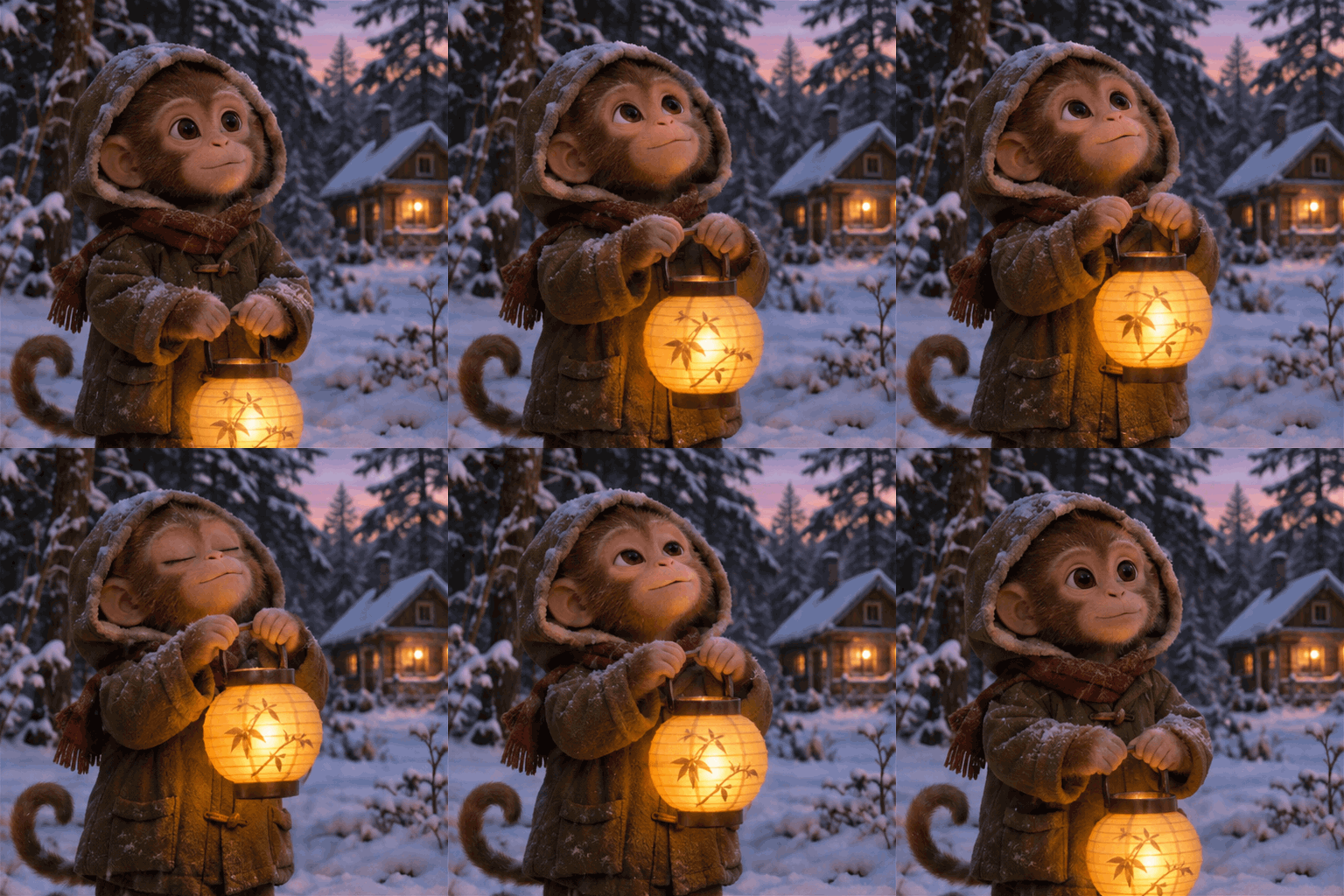
This loop is OpenAI's example: nine frames at 200 milliseconds, made with Sunburst on High. OpenAI's advice for a smooth loop is to give the subject a starting pose to come back to, and to say whether the camera moves:
A small monkey in a green hooded coat stands in the snow outside a lit cabin.
It lifts a glowing paper lantern, blinks, and lowers it back to where it started.
The camera stays still. Soft evening light, gently falling snow.
Frames are small, 512 × 512 pixels for a square GIF and 768 × 432 for 16:9, because every frame is drawn on one sheet. A GIF suits stickers, reactions, product teasers and small loops on a website; it does not replace a video. For a real clip with sound, use the Gemini Omni 1.2 Flash guide.
You can add reference photos to a GIF, for example a product that should appear in the loop. GIFs have no transparent background.
SVG logos and icons
Choose Vector in the Format menu and you get an SVG file: shapes and paths instead of pixels, so it stays sharp at any size and a designer can open it and change its colours. OpenAI first draws a picture at the quality you choose, then a second model traces it into clean vector paths.

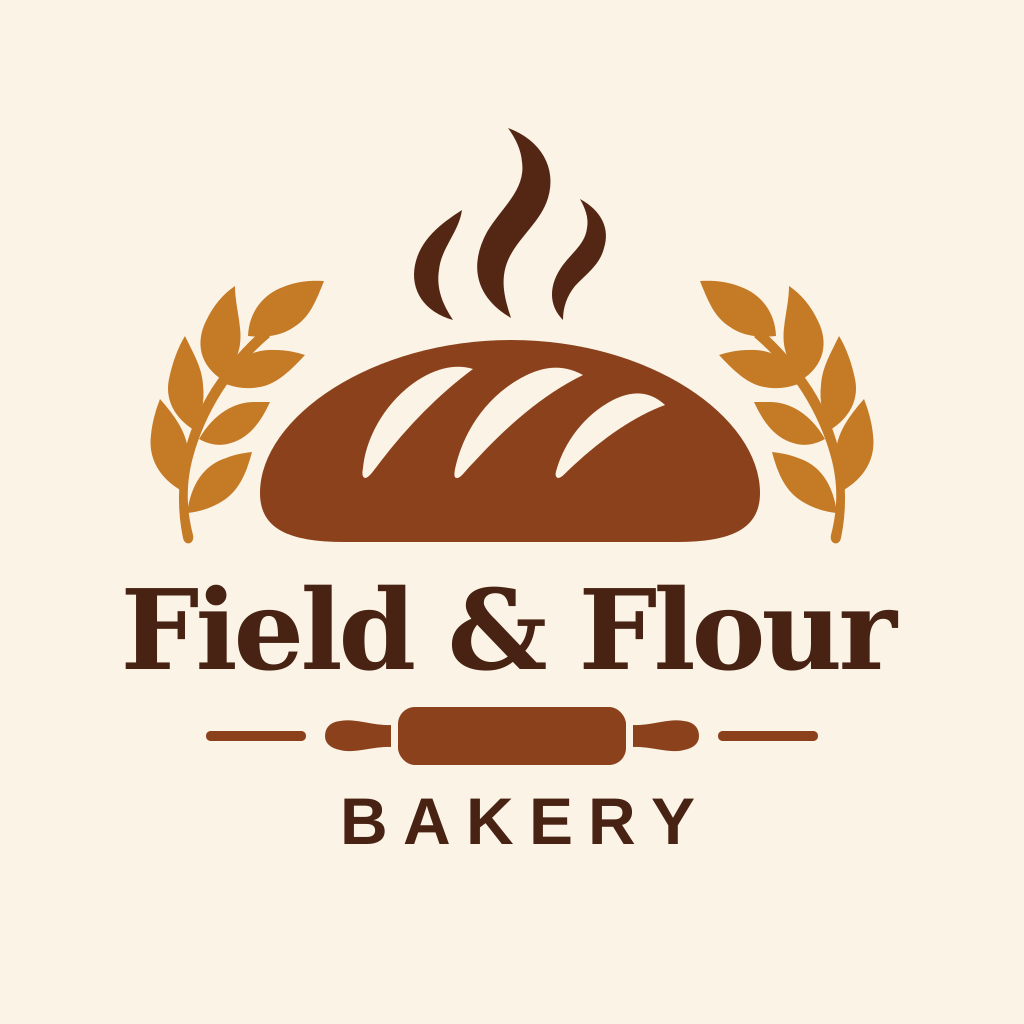
Both logos come from the same brief, Flare on the left and Sunburst on the right. The files are transparent; they are shown here on a background so the lettering is visible. Sunburst added more detail, but Flare's simpler mark is the easier one to use small.
Prompts for SVGs work best when they ask for few, bold shapes:
Create a logo for "Field & Flour", a small artisan bakery.
Use clean, vector-like shapes, a strong silhouette, and balanced negative space.
A simple loaf above the name. Two or three warm colours. No gradients or tiny details.
A vector drawing starts from words only, so it cannot use reference photos. Check the lettering at full size before you use it: it is traced from a picture, not typed.
Draw on a photo to show what to change
Some edits are hard to describe. "The vase on the table" is ambiguous in a room with three vases. On GPT Image 2.6 you can circle it instead:
- Add the photo in Create, with GPT Image 2.6 Flare or Sunburst selected.
- Press the pen on the photo. A drawing window opens.
- Circle or scribble over what should change, and press Done.
- Write the change in the prompt, and say what must stay the same.
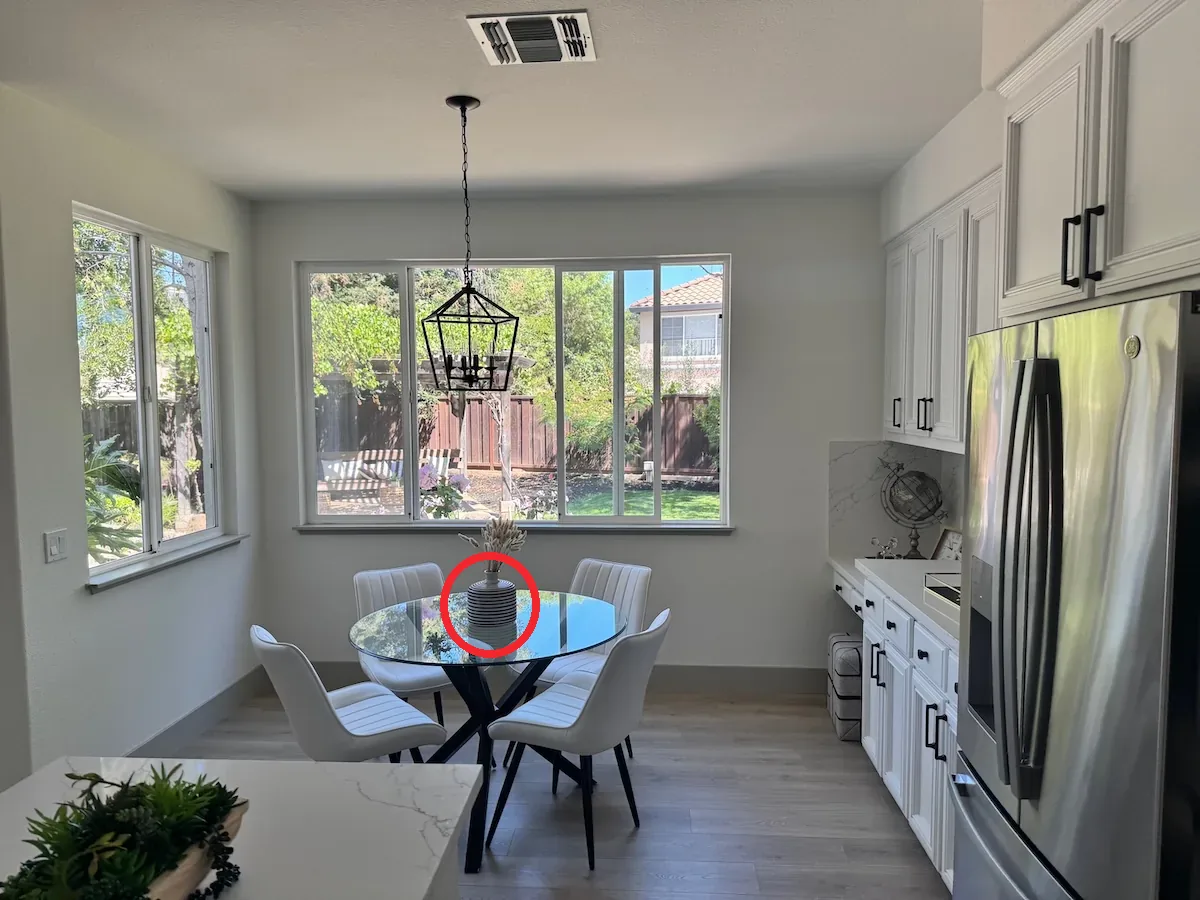
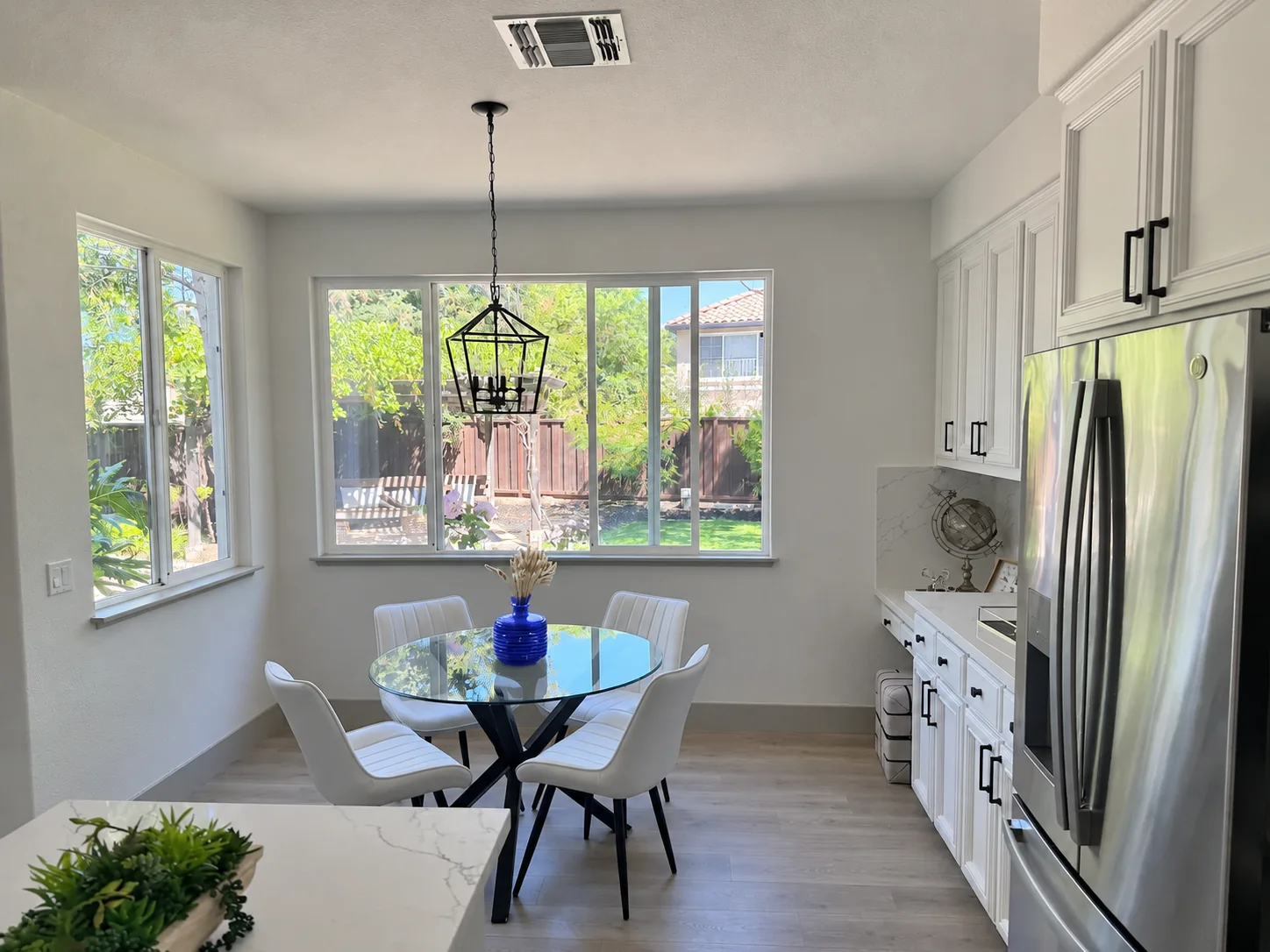
OpenAI's prompt for this edit:
Recolor the striped vase inside the red circle to solid cobalt blue ceramic.
Keep its shape, the dried stems, and the rest of the kitchen unchanged.
Remove the red circle from the finished photo.
The drawing marks the place; the words still say what to do. Markup works on the first photo you add; any others act as normal references. It costs nothing extra: the drawing adds no credits.
Quick or Careful planning
GPT Image 2.6 can plan a picture before it draws it. In Nenis that is the Planning setting: Careful is the default and plans the most, Quick plans the least. Both cost the same.
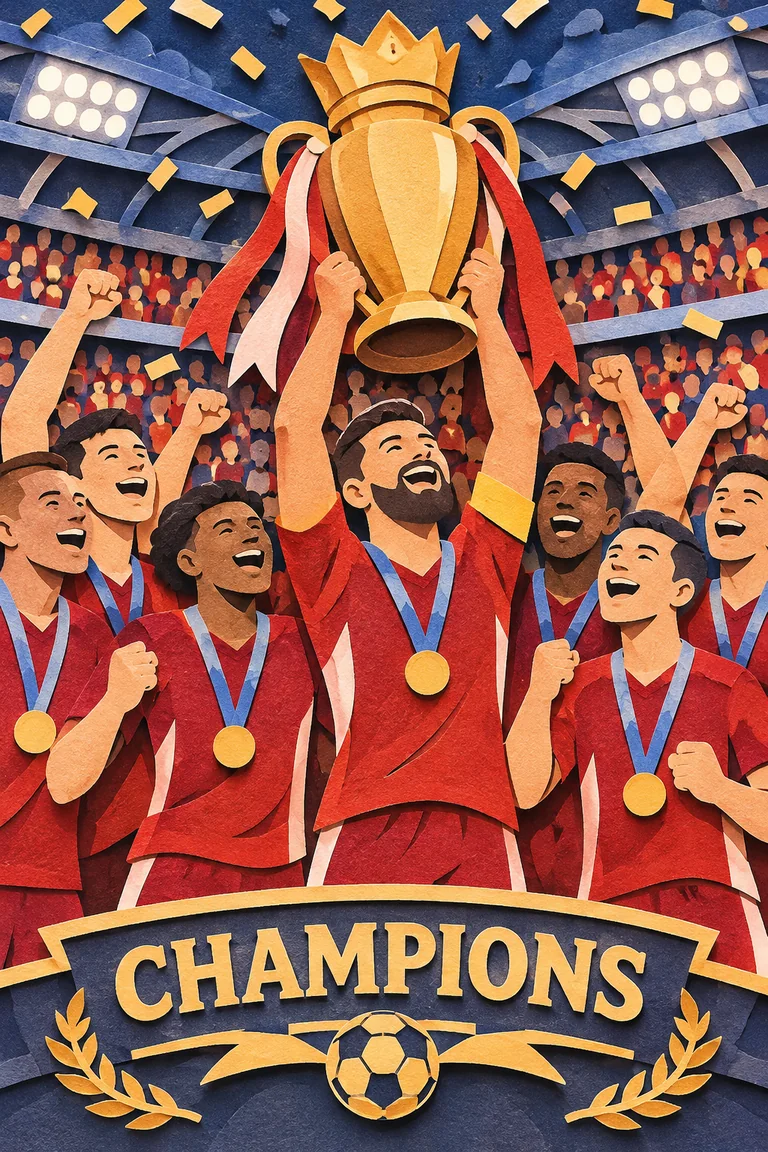
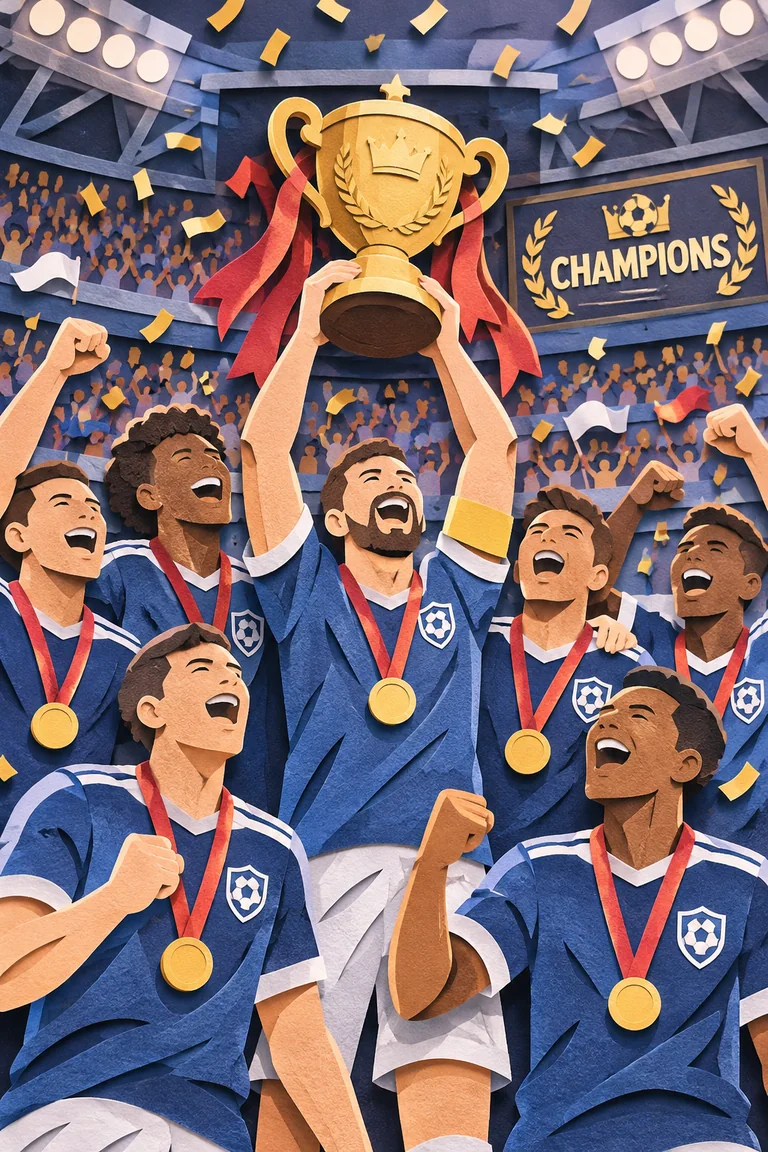
Same prompt, low planning on the left and high on the right. With more planning the model rearranged the scene: the sign moved into the stands, and the kits changed colour too. That is the trade-off OpenAI describes: more planning helps with dense text, complex layouts and how objects relate, but it is slower and can change things you did not ask for.
- Use Quick for focused edits: a new background, a recoloured product, different words on a sign.
- Use Careful when the prompt leaves design decisions open, or the image has many parts.
Credits in Nenis
Flare and Sunburst cost the same. Prices are per image, without reference photos.
| Quality | 1K | 2K | 4K |
|---|---|---|---|
| Low | 4 | 7 | 12 |
| Medium | 7 | 12 | 21 |
| High | 8 | 14 | 25 |
| XHigh | 13 | 25 | 44 |
| Max | 30 | 55 | 99 |
Low and Medium cost more than they did on 2.5, because GPT Image 2.6 spends more on them. High and above cost about the same as before. Each reference photo adds about 1.7 credits per image.
GIFs and SVGs have their own prices, whatever the size:
| Format | Low | Medium | High |
|---|---|---|---|
| GIF, 4 frames | 3 | 5 | 6 |
| GIF, 9 frames | 6 | 10 | 12 |
| GIF, 16 frames | 8 | 14 | 17 |
| SVG | 11 | 14 | 15 |
Speed does not change a GIF's price. Create always shows the final price before you generate.
Limits to know before generating
- GIFs are small and silent. Frames are about 512 pixels, there is no sound, and there is no transparent background.
- SVGs start from words. Remove your photos to make one, and proofread every letter.
- Markup needs a photo. It marks the first photo only.
- Text still needs checking. Quote the exact words you want, ask for no other text, and read the result at full size.
- No web search. GPT Image 2.6 does not look anything up; give it the facts it needs.
The recommendation
Start with GPT Image 2.6 Flare at 1K High for 8 credits. Choose Animated for a loop, Vector for a logo or icon, and circle the part of a photo you want changed instead of describing where it is. Switch to Sunburst when an edit has to be exact, and set Planning to Quick for small, focused edits.
For every image model side by side, see the image model comparison.
Sources and image credits
- OpenAI: GPT Image 2.6 Flare model page
- OpenAI: GPT Image 2.6 Sunburst model page
- OpenAI: image prompting guide
- OpenAI: image generation guide
- OpenAI: API changelog
Every image in this article is an official OpenAI GPT Image 2.6 example from the image prompting guide: the Thread campaign, the lantern GIF, the Field & Flour logos, the vase edit and the paper-cut football poster. They are vendor demonstrations, not independent Nenis results. The SVG logos are shown on an added background; the original files are transparent. Nenis controls and credit prices were checked against the Nenis model catalogue on November 7, 2026.