GPT Image 2.5 Sunburst Guide: Precise AI Image Editing
A practical GPT Image 2.5 Sunburst guide for precise editing, identity and product preservation, transparent cutouts, 1K-to-4K output, five quality levels, and choosing Sunburst over Flare.
GPT Image 2.5 Sunburst is the OpenAI model to choose when quality and editing precision matter more than speed.
It is not limited to editing: Sunburst can generate a new image from text, edit one or more references, create transparent assets, and work across the same sizes and quality levels as Flare. The difference is priority. OpenAI positions Sunburst as the base model for demanding quality requirements and workflows where editing precision matters most.
In Nenis, Sunburst has full control across 1K, 2K, and 4K output, five quality settings, ten aspect ratios, up to 16 references, and transparent PNG generation.
What GPT Image 2.5 Sunburst is for
Choose Sunburst when a near-miss is expensive:
- replacing one product or object without redesigning the scene;
- changing clothing while protecting a real person's identity and pose;
- preserving packaging geometry, labels, or brand colors;
- combining several references with clearly separated roles;
- turning a rough sketch into a polished render without losing its layout;
- producing a final image where visual quality matters more than latency; or
- extracting a clean transparent asset from an existing photograph.
Choose GPT Image 2.5 Flare when you are exploring directions, producing many everyday assets, or valuing fast feedback over Sunburst's quality advantage.
Sunburst settings and credits in Nenis
Sunburst and Flare expose the same controls and the same base credit matrix in Nenis.
| Control | Available in Nenis |
|---|---|
| Output sizes | 1K, 2K, and 4K |
| Quality | Low, Medium, High, XHigh, and Max |
| Aspect ratios | 1:1, 16:9, 9:16, 4:3, 3:4, 21:9, 3:2, 2:3, 4:5, and 5:4 |
| Reference images | Up to 16; charged per reference, per output |
| Results per run | 1 to 10 |
| Background | Opaque or transparent |
| Standard format | JPG; transparent output uses PNG |
| Output size | Low | Medium | High | XHigh | Max |
|---|---|---|---|---|---|
| 1K | 1 | 2 | 7 | 11 | 25 |
| 2K | 2 | 3 | 12 | 21 | 46 |
| 4K | 3 | 6 | 21 | 37 | 83 |
The matrix above is the per-output price when no reference image is supplied. Reference images are an additional input cost: OpenAI bills image input at $8 per million tokens, and Nenis budgets up to 1,536 input-image tokens for each reference. That contributes about 1.43 unrounded credits per reference, per output.
| Reference images | Input component per output before rounding |
|---|---|
| 0 | 0 credits |
| 1 | about 1.43 credits |
| 2 | about 2.86 credits |
| 4 | about 5.71 credits |
| 8 | about 11.42 credits |
| 16 | about 22.84 credits |
Nenis adds the exact output and reference-image components, rounds that per-output total up once, and then multiplies it by the number of requested results.
Displayed credits per output =
ceiling(exact output cost + 1.4277 × reference images)

Total job credits = displayed credits per output × requested results
For example, 1K High with no reference costs 7 credits per output. With one reference it costs 8 credits; with four references it costs 12. Requesting three edited results with those four references costs 36 credits because every reference is sent again for every output. The live Nenis estimate remains the final price shown before generation.
The old idea that Sunburst's “Ultra” setting is still a 1K image is wrong. Size and quality are now independent controls. You can choose a low-cost 4K draft, a high-quality 1K edit, or a 4K Max final—each with a different price and purpose.
Sunburst or Flare?
Because their Nenis pricing is identical, choose the model by what the job needs.
| Situation | Better starting point |
|---|---|
| Fast text-to-image exploration | Flare |
| Many everyday campaign variations | Flare |
| A simple edit where turnaround matters | Flare |
| Highest available 2.5 image quality | Sunburst |
| Precise local or reference-led editing | Sunburst |
| Protecting a face, product, or layout | Sunburst |
| A final production candidate | Sunburst |
OpenAI recommends starting with Flare when speed is the priority and Sunburst when demanding quality is the priority. If both meet the brief, Flare can save time. Keep Sunburst when its quality or precision advantage is visible on your actual images.
Preserve identity while changing clothing
The strongest editing prompt defines a contract: what may change, what must remain fixed, and how the new elements should fit the existing photograph.
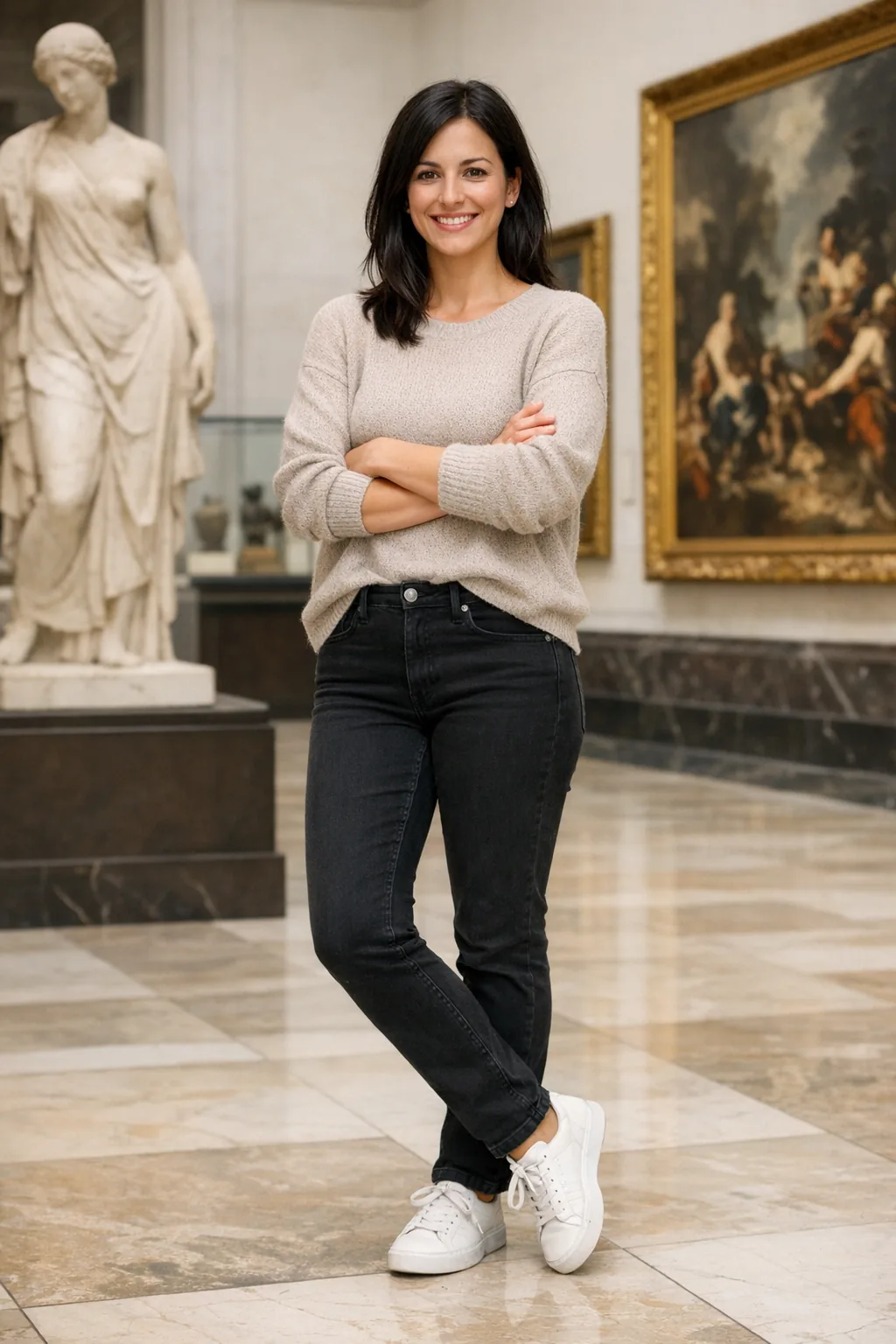
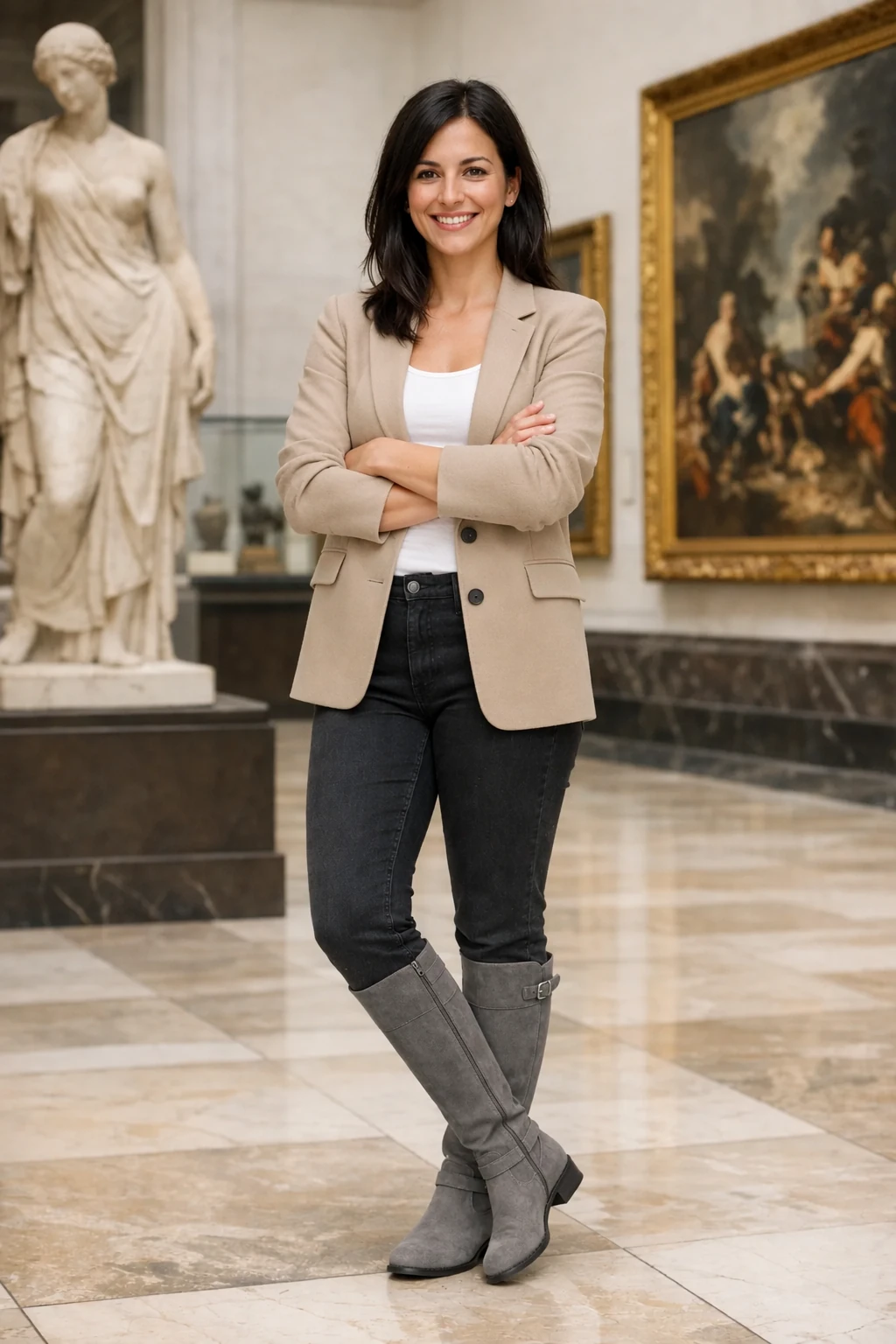
In OpenAI's official example, the person, pose, crop, and museum setting stay recognizable while several supplied garments replace the original outfit. The prompt protects identity explicitly instead of relying on “keep her the same.”
Use this structure:
Use image 1 as the identity and base-scene reference.
Use images 2 to 4 only as clothing references.

Replace only the clothing and shoes. Fit the supplied garments naturally to the
existing pose and body geometry, with realistic fabric folds, light, and shadows.

Preserve the exact face, facial features, skin tone, hair, expression, body shape,
pose, hands, proportions, background, framing, and camera angle.

Do not add accessories, text, logos, beauty retouching, or a new background.
Identity preservation remains probabilistic. Compare the output with the source at full size before using it as a real-person likeness.
Make one precise change to an interior
Local editing becomes easier to judge when the rest of the scene has an explicit lock.
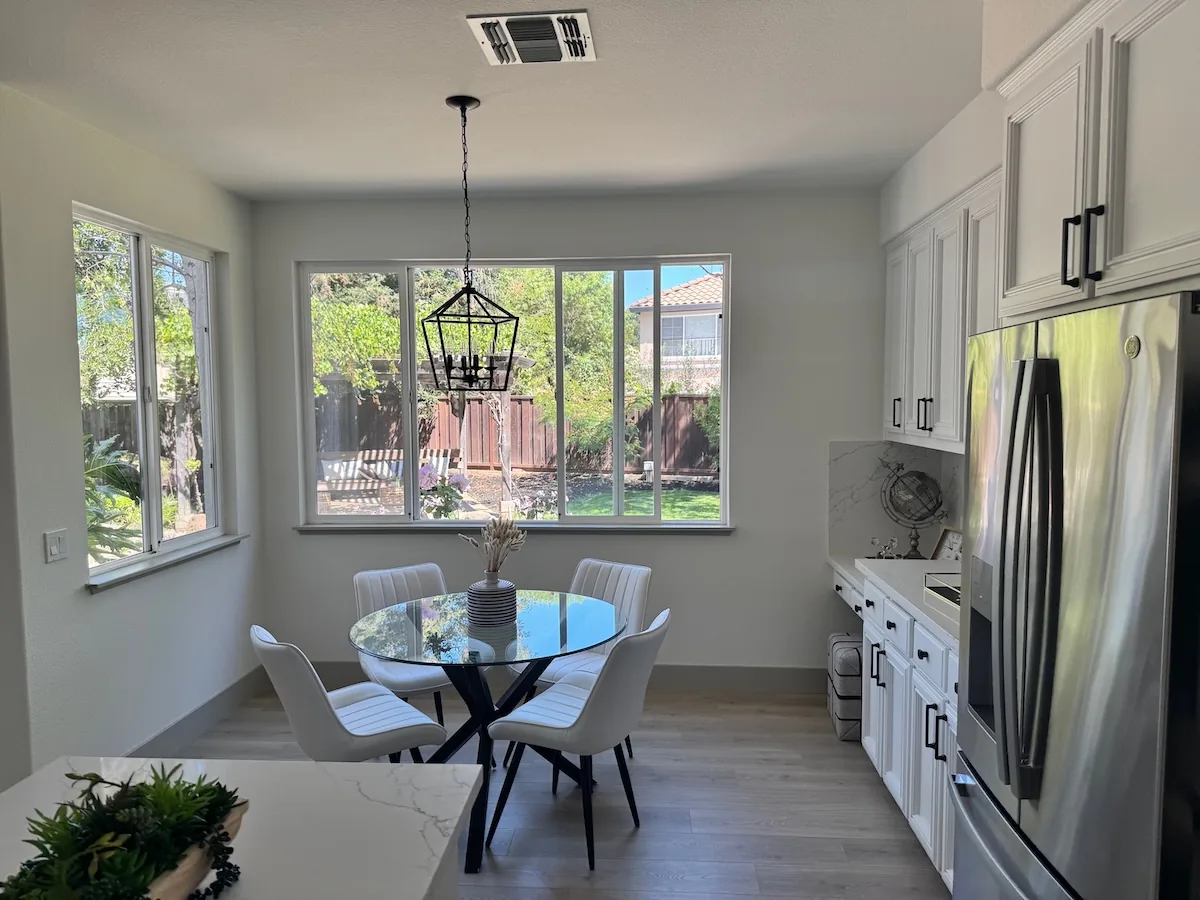
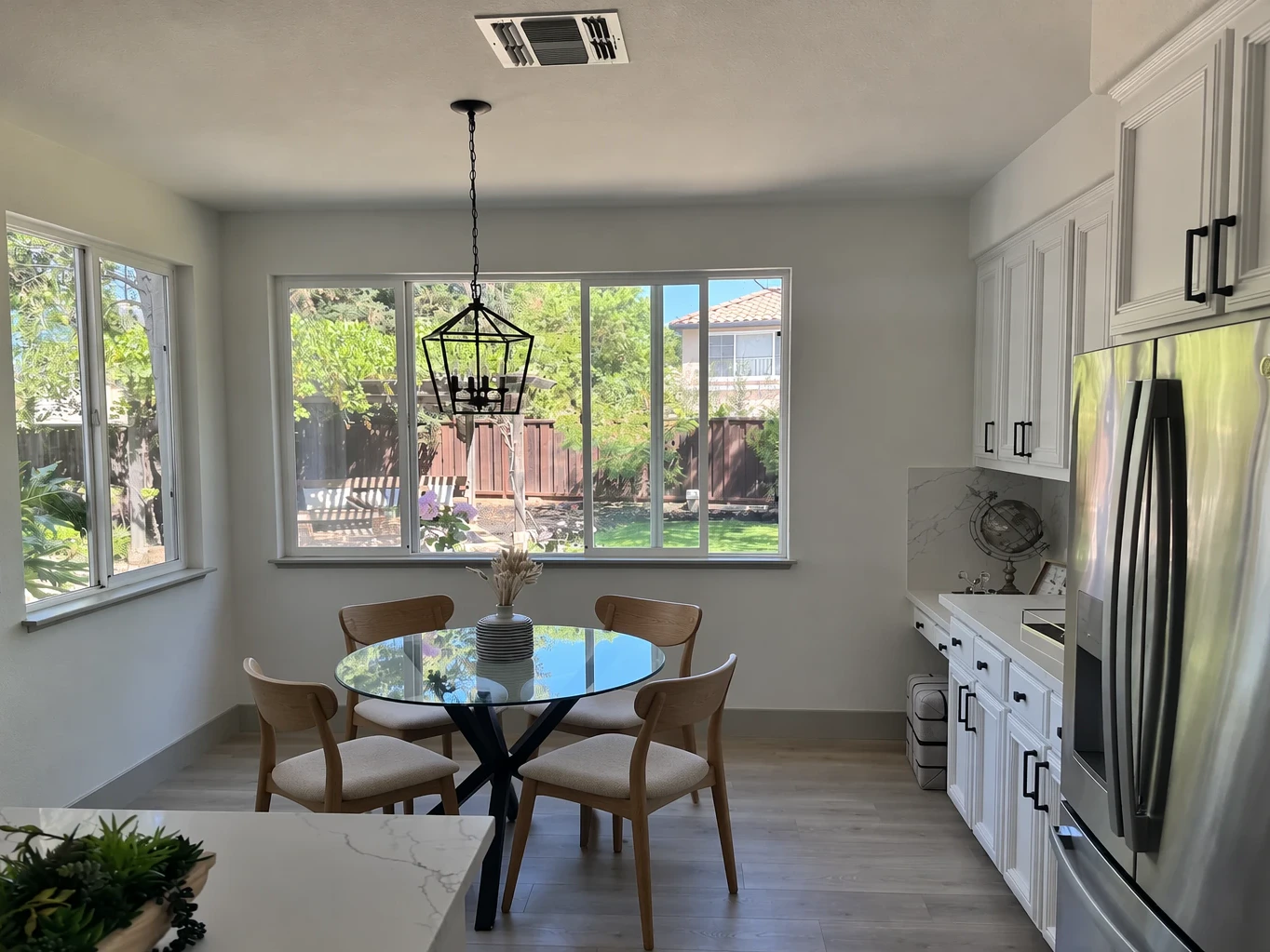
The official example changes the chairs while retaining the room, windows, table, lighting, and camera position. OpenAI returned the edit in a wider three-to-two frame than the four-to-three source, so the result above is center-cropped to four-to-three only to keep the comparison aligned. A useful prompt names both sides of the editing boundary:
In the uploaded kitchen photo, replace only the four white dining chairs with
simple natural-oak chairs.

Keep the table, chair positions, room geometry, windows, cabinets, appliances,
camera angle, crop, daylight, floor reflections, and surrounding objects unchanged.

Match the new chairs to the existing perspective and add realistic contact shadows.
Do not redesign or relight the room.
If the exact pixels outside a selected area cannot change at all, a traditional masked editor may still be the safer tool. Sunburst is performing a generative reconstruction.
Create a transparent product cutout
Transparency requires more than drawing a checkerboard. The model must isolate the product and the returned file must preserve a real alpha channel.
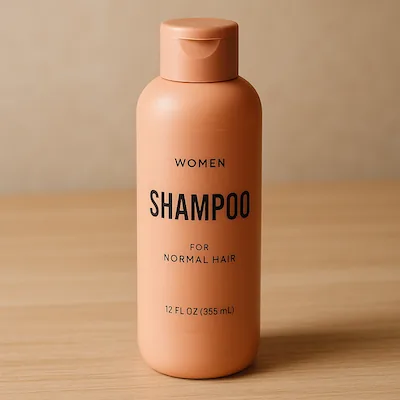
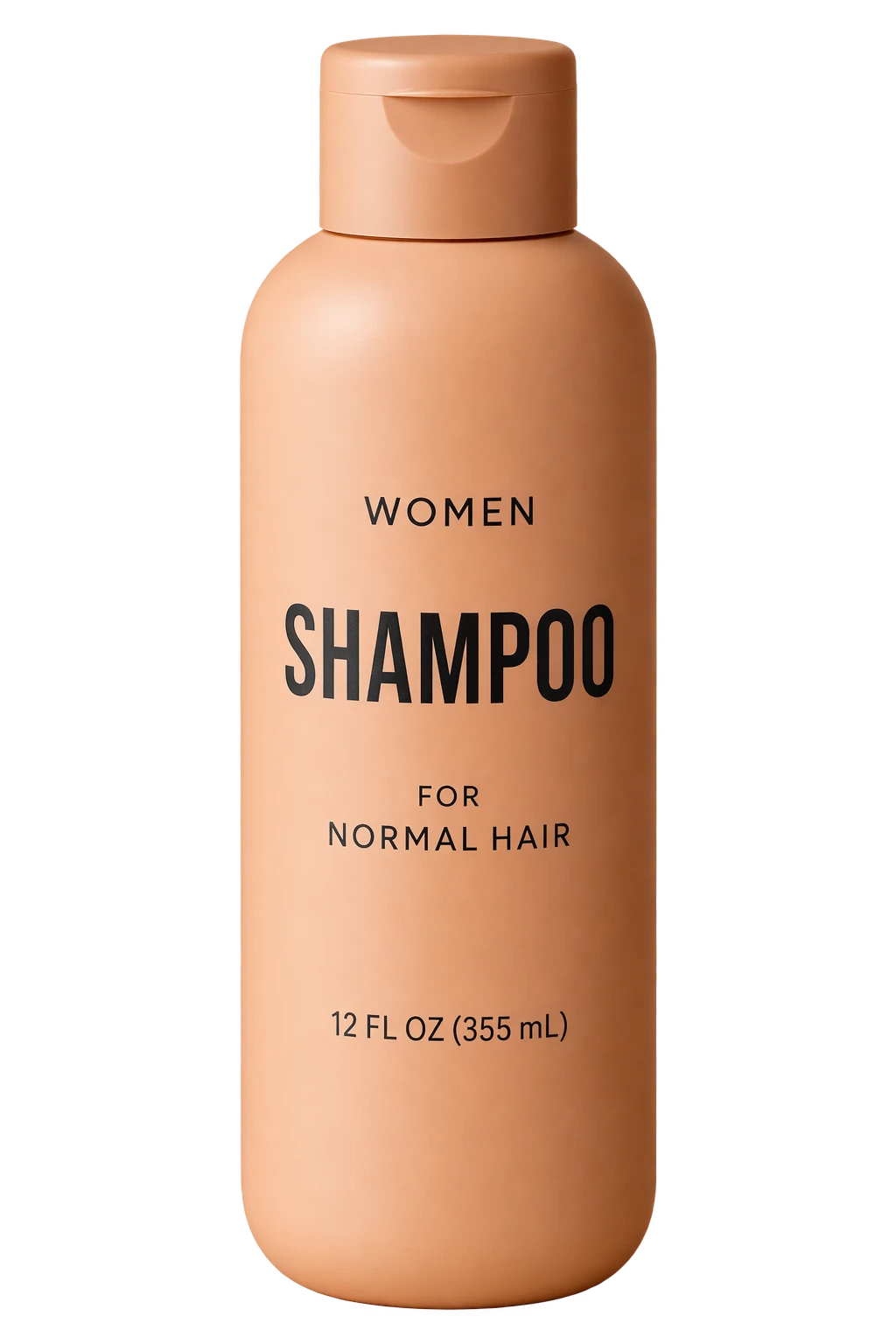
Nenis handles the output setting when you enable a transparent background and returns PNG rather than JPG.
Extract the product from the uploaded photograph and place it on a fully
transparent background.

Keep the exact bottle geometry, cap, color, label placement, spelling, and
proportions. Preserve crisp edges without halos or cut-off details.

Add only minimal cleanup. Do not restyle the product, invent text, draw a
checkerboard, add scenery, or add a new shadow.
Inspect small text and edge transparency before publishing. For ecommerce or legal packaging, the source photograph remains the authority.
A prompt formula for controlled edits
OpenAI's image prompting guidance recommends assigning roles to every reference and separating edits from preservation constraints. This compact format works across portraits, products, interiors, and compositions:
Base image: [which image defines the scene].
Reference roles: [what each additional image controls].
Change only: [the exact subject, object, region, text, or material].
Preserve: [identity, geometry, pose, layout, labels, lighting, and crop].
Match: [perspective, scale, color temperature, shadows, and texture].
Avoid: [likely drift, additions, distortions, or rewritten text].
Output: [aspect ratio, size, quality, and transparency requirement].
For iterative edits, pass the accepted result into the next step, request one main change, and repeat the critical preservation rules. “Same as before” is convenient, but it is weaker than restating the face, product, layout, or text that cannot drift.
Limits to know
- 4K output is experimental. OpenAI marks outputs above 3,686,400 pixels as experimental. Inspect structure and text carefully.
- Precision is not pixel locking. Unrequested details may still move because every result is generated.
- Text can still fail. Quote required copy, prohibit other text, and proofread the final asset.
- References add cost. Use only the images that control a real part of the result.
- The maximum ratio is three-to-one. Nenis provides ten valid ratios within that limit.
- Transparent output needs PNG. Do not convert the finished asset to JPG if you need alpha transparency.
- Sunburst is not automatically worth the wait. If Flare meets the requirement, its faster path is the better production choice.
The recommendation
Choose GPT Image 2.5 Sunburst when an image must survive a careful change or when the final quality bar is higher than speed-first Flare can meet.
Start at 1K Medium or High to test whether the edit contract is understood. Increase quality when you can name the remaining problem, and increase to 2K or 4K when the final delivery needs more pixels. This keeps the expensive settings attached to a reason instead of a reflex.
Sources and image credits
- OpenAI: GPT Image 2.5 Sunburst model page
- OpenAI: GPT Image 2.5 prompting guide
- OpenAI: image generation guide
The portrait, outfit, kitchen, chair, shampoo, and cutout images are official OpenAI inputs and GPT Image 2.5 Sunburst showcase outputs from the prompting guide. The displayed chair result is a centered crop of the official output; its scene content was not regenerated or changed. These are vendor demonstrations, not independent Nenis benchmark results. OpenAI prices and availability can change. Nenis controls and credit prices were verified against the production catalogue on September 12, 2026.