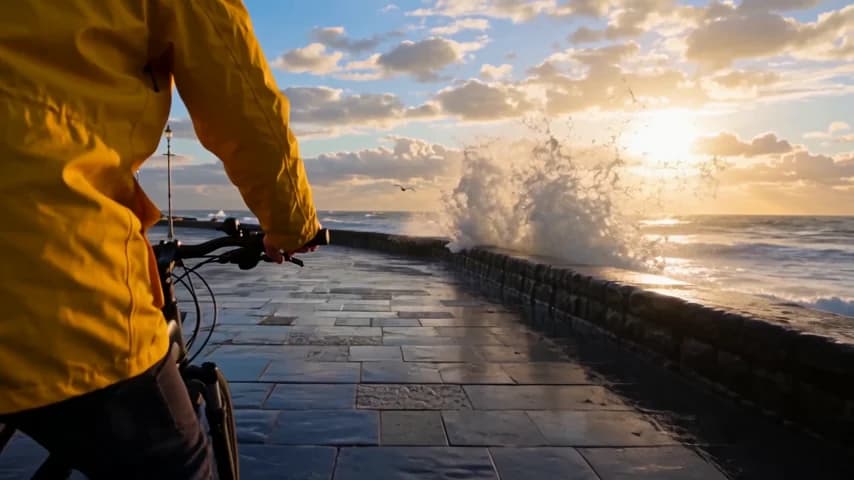
Gemini Omni 1.2 Flash Guide: 15-Second AI Videos You Can Edit
A practical Gemini Omni 1.2 Flash guide for Nenis: what changed from 1.1, three videos made for this guide with their prompts, six ways to create, credit prices from 13 credits, prompting tips, and honest limits.
Gemini Omni 1.2 Flash, Google's newest video model, replaced Omni 1.1 in Nenis on November 7, 2026. It makes videos with generated sound from 3 to 15 seconds, five seconds longer than before, and costs about 30% fewer credits: a 10-second 720p video is now 99 credits instead of 143.
Everything else that made Omni useful is still there. You can start from words, a photo, two frames or references, then change the finished video with one sentence or continue it past its last frame. Videos you made with 1.1 can still be edited and extended.
What changed from Omni 1.1
Google released Omni 1.2 Flash on November 5, 2026, "featuring up to 15-second video generation and conversational editing", and from December 3 it sends every remaining 1.1 request to 1.2.
| In Nenis | Omni 1.1 Flash | Omni 1.2 Flash |
|---|---|---|
| Length per video | 3–10 seconds | 3–15 seconds |
| Video you can edit | Up to 10 seconds | Up to 15 seconds |
| Extend | 3–10 seconds a turn, about 40 in total | 3–10 seconds a turn, 30 in total |
| 10 seconds at 720p | 143 credits | 99 credits |
| Resolutions and shapes | 360p to 4K, 16:9 and 9:16 |
Unchanged |
Google also says 1.2 keeps characters and subjects more consistent across up to six reference images. That is Google's claim, not a Nenis benchmark.
One limit is new: extended videos now stop at 30 seconds instead of about 40.
Tested: three videos made for this guide
Each video below was made with Gemini Omni 1.2 Flash at 720p for this article, using the same request Nenis sends. Nothing was retouched or re-cut; press play to hear the generated sound.
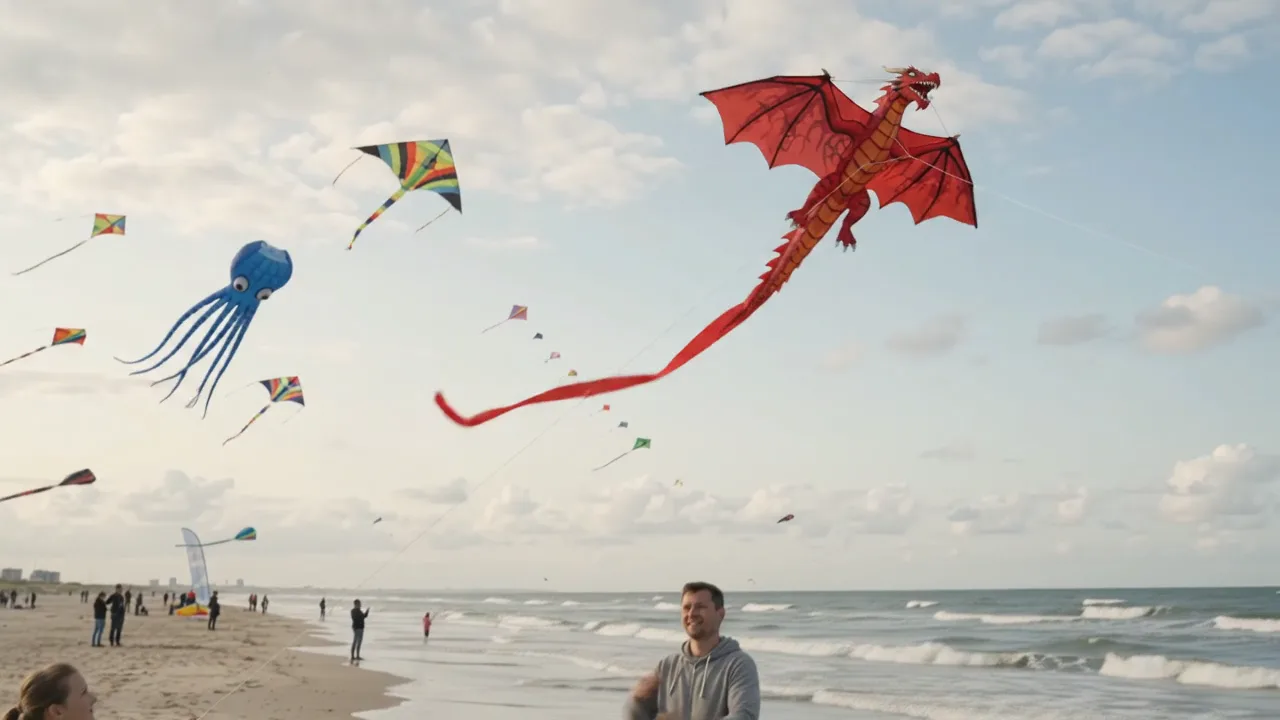
A 15-second single take from words alone
The longest video Omni 1.2 can make, in one unbroken shot: a launch, a climb, and a moment between two people, with the camera moving to follow.
Single continuous shot, no cuts. A windy afternoon on a wide sandy beach at a kite
festival, the sea on the right. A girl of about ten in a yellow windbreaker holds a
large red dragon kite with a long ribbon tail above her head. Ten metres in front of
her, her father in a grey hoodie holds the line on a wooden spool.
[0-4s] He nods, she lets go, and he pulls the line in; the wind catches the dragon
and it climbs.
[4-10s] The camera tilts up and follows the red dragon as it rises, its tail
rippling. Other kites drift in the distance: a blue octopus, a striped delta.
[10-15s] The camera tilts back down: the girl runs to her father, takes the spool
with him, and they both look up at the dragon, laughing.
Sound: gusting wind, the kite fabric snapping, waves, distant festival chatter, the
girl's laugh. No music, no dialogue.
15 seconds at 720p: 147 credits. Omni followed all three timed beats, kept the camera in one take, and built the sound from the prompt: wind, waves and the girl's laugh. Look closely at the kite line in the middle of the shot, though: it drifts toward the girl rather than the father's spool. Review the whole clip, not only its first and last frames.
Turning a photo into a video
The starting photo was made for this guide with Nano Banana 2.1. Omni used it as the first frame and played out the moment it shows.

Use the photo as the first frame. Static camera. The woman takes the sunflowers from
the florist with a smile and a quick thank-you nod, lays them in the wicker basket of
her bicycle, turns the bicycle away from the stall, swings her leg over it and rides
off down the cobbled street, away from the camera, past the cafe tables. The florist
waves after her. Sound: street ambience, a bicycle bell as she sets off, distant cafe
chatter. No music.
6 seconds at 720p with one photo: 62 credits. Every step happened in order, and the florist, the stall and the street stayed as they were in the photo. One thing Omni added on its own: halfway through, it cut to a second camera behind her as she rides away, even though the prompt asked for a static camera. When you need one take, write "Single continuous shot, no cuts", as in the beach prompt.
Changing the finished video with one sentence
Then the same video got one edit, without uploading anything again: make it a snowy winter evening.
Make it a snowy winter evening. Snow falls across the whole street and settles on the
cobblestones, the cafe tables and chairs, the window ledges, the cafe awning and the
top of the big green umbrella; the sky is dark blue and the shop and cafe windows glow
warm yellow. The flowers under the umbrella stay dry and colourful. Keep the woman,
her bicycle, the sunflowers, the florist and every movement exactly the same.
6 seconds at 720p: 69 credits. The people, the bicycle and every movement stayed the same, including the cut, while the whole street changed season. The flowers under the umbrella stayed dry, as asked. Saying where the change should and should not reach is what made this edit work: without it, snow can end up in places it could never fall.
Six ways to make a video
Choose the mode in the video workspace. Each has its own limits on Omni 1.2:
| Mode | What you give it | Length |
|---|---|---|
| Text | A prompt | 3–15 seconds |
| Animate image | One photo as the first frame | 3–15 seconds |
| First / last frames | A starting and an ending image | 3–10 seconds |
| References | Up to 6 images, plus up to 3 clips of 3 seconds (1 clip above 10 seconds) | 3–15 seconds |
| Edit | A video of up to 15 seconds | Same as the video |
| Extend | A video to continue | Adds 3–10 seconds, up to 30 in total |
Edit and Extend work on any Omni video you made in Nenis while its edit history is kept, and on videos you upload, except in the EEA, Switzerland and the UK, where Google does not allow editing uploaded videos, and when Nenis cannot tell where you are. For Wan 3.0's longer takes and square or 4:3 shapes, see the Wan 3.0 guide.
Credits in Nenis
The price depends on length and resolution. These are the prices without photos or clips:
| Length | 360p | 720p | 1080p | 4K |
|---|---|---|---|---|
| 3 seconds | 13 | 32 | 46 | 90 |
| 5 seconds | 19 | 51 | 75 | 147 |
| 8 seconds | 29 | 80 | 119 | 234 |
| 10 seconds | 35 | 99 | 147 | 291 |
| 12 seconds | 42 | 119 | 176 | 349 |
| 15 seconds | 51 | 147 | 219 | 436 |
A photo adds less than a credit. Each second of a video Omni reads, a reference clip or the video you edit, adds about 1.2 credits; an extension reads at most the last 10 seconds. Create shows the final price before you generate, and a failed video costs nothing.
Prompting Omni 1.2
Write the scene, the movement, the camera and the sound. A structure that worked for every video above:
Single continuous shot, no cuts.  (leave out if cuts are fine)
Scene: who, where, when, and what they are holding or wearing.
[0-4s] First beat of the action.
[4-10s] Second beat, with the camera move.
[10-15s] The ending.
Sound: ambience, effects tied to the action, music or "No music", dialogue or "No dialogue".- Spell out every step. "She lays the flowers in the basket, swings her leg over and rides off" works; "she leaves" leaves the how to chance.
- Use timings for beats.
[0-4s]or "after three seconds" both work, as a guide rather than to the frame. - The length setting wins. If the prompt says 10 seconds and you choose 15, you get 15.
- For edits, name what stays. End with "Keep everything else the same", and say where the change must not reach.
- Describe the sound. Otherwise Omni picks it for you, music included.
Limits to know before generating
- Landscape or portrait only.
16:9or9:16, one video per run. - Extend only adds to the end, up to 30 seconds in total.
- No uploaded audio. Omni makes its own sound; it cannot copy a song or a voice you upload, and it ignores the sound of reference clips.
- Edit history lasts seven days. Nenis keeps what Google needs to edit or extend a video for up to seven days; you can turn this off in Settings → Video privacy. Your finished videos stay in your gallery either way.
- Recognisable people in uploaded photos may be refused.
- English prompts are the ones Google has tested; other languages may be less reliable.
- Every video carries SynthID, Google's invisible watermark that marks it as AI-made.
The recommendation
Use Gemini Omni 1.2 Flash for short videos with sound that you may want to change afterwards. Draft at 360p, write each step and sound into the prompt, and ask for a single continuous shot when cuts would spoil it. Finish at 720p, then fix what is not right with one sentence instead of starting again.
Choose Wan 3.0 when you need a single take longer than 15 seconds or a square video.
Sources and image credits
- Google: Gemini Omni Flash model page
- Google: Generate and edit videos with Gemini Omni
- Google: Gemini API release notes
- Google: Gemini API deprecations
All three videos were made for this article with Gemini Omni 1.2 Flash at 720p on November 7, 2026, using the prompts shown. The starting photo was made with Nano Banana 2.1 for this article. Nenis modes, limits and credit prices were checked against the Nenis catalogue the same day.