GPT Image 2.5 Flare Guide: Fast 4K AI Image Generation
A practical GPT Image 2.5 Flare guide covering Nenis pricing, 1K-to-4K output, five quality levels, reference images, transparent backgrounds, prompts, and the right time to choose Flare over Sunburst.

GPT Image 2.5 Flare is the OpenAI model to start with when you want strong everyday image generation without choosing the slower quality-first option.
OpenAI positions Flare as the fast model in the GPT Image 2.5 family. It can generate new images, edit uploaded images, preserve subjects across revisions, render supplied text, and produce transparent assets. In Nenis, it also has full manual control across 1K, 2K, and 4K output and five quality levels.
The practical decision is simple: begin with Flare for creation and quick iteration. Move to GPT Image 2.5 Sunburst when editing precision or the highest available visual quality matters more than turnaround time.
What GPT Image 2.5 Flare is
GPT Image 2.5 contains two models rather than one model with a speed switch:
- Flare is the small, speed-optimized model for everyday generation and editing.
- Sunburst is the base, quality-optimized model for demanding generation and precise editing.
OpenAI's official prompting guide describes Flare's image quality as comparable to GPT Image 2, while positioning it as the faster starting point. The guide also says both 2.5 models improve precise editing and subject preservation.
That makes Flare useful for work where iteration is part of the process: social graphics, campaign concepts, product scenes, portraits, posters, presentation visuals, and reference-led variations.
GPT Image 2.5 Flare settings in Nenis
Nenis exposes the controls that matter to a creator rather than the underlying API vocabulary.
| Control | Available in Nenis |
|---|---|
| Output sizes | 1K, 2K, and 4K |
| Quality | Low, Medium, High, XHigh, and Max |
| Aspect ratios | 1:1, 16:9, 9:16, 4:3, 3:4, 21:9, 3:2, 2:3, 4:5, and 5:4 |
| Reference images | Up to 16; charged per reference, per output |
| Results per run | 1 to 10 |
| Background | Opaque or transparent |
| Standard format | JPG; transparent output uses PNG |
OpenAI allows custom dimensions within defined limits. Nenis turns that flexibility into three useful size tiers and ten common ratios, so you do not need to calculate valid pixel dimensions yourself.
Flare credits by size and quality
Size and quality are separate choices. A 4K Low image can cost less than a 1K High image because the quality level controls how many output tokens the model spends on the result.
| Output size | Low | Medium | High | XHigh | Max |
|---|---|---|---|---|---|
| 1K | 1 | 2 | 7 | 11 | 25 |
| 2K | 2 | 3 | 12 | 21 | 46 |
| 4K | 3 | 6 | 21 | 37 | 83 |
The matrix above is the per-output price when no reference image is supplied. Reference images are an additional input cost: OpenAI bills image input at $8 per million tokens, and Nenis budgets up to 1,536 input-image tokens for each reference. That contributes about 1.43 unrounded credits per reference, per output.
| Reference images | Input component per output before rounding |
|---|---|
| 0 | 0 credits |
| 1 | about 1.43 credits |
| 2 | about 2.86 credits |
| 4 | about 5.71 credits |
| 8 | about 11.42 credits |
| 16 | about 22.84 credits |
Nenis does not round every input separately. It adds the exact output and reference-image components, rounds that per-output total up once, and then multiplies it by the number of requested results.
Displayed credits per output =
ceiling(exact output cost + 1.4277 × reference images)

Total job credits = displayed credits per output × requested results
For example, 1K High with no reference costs 7 credits per output. With one reference it costs 8 credits; with four references it costs 12. Requesting three results with those four references costs 36 credits because every reference is sent again for every output. The live Nenis estimate remains the final price shown before generation.
A sensible workflow is:
- Test the idea at 1K Medium for 2 credits.
- Move to 1K High or 2K High when the composition works.
- Use 4K only when the delivery format benefits from the larger file.
- Reserve XHigh and Max for a specific quality problem that lower settings did not solve.
OpenAI cautions that a higher quality setting does not guarantee a better result for every prompt. Compare the result, not the label.
Where Flare earns its place
Fast campaign concepts with usable text
Flare is a strong starting point when the image needs both photography and a short line of copy. Quote the required wording, state how often it should appear, and prohibit extra text.
Create a vertical streetwear campaign photograph for a young urban audience.

Show four friends relaxing together outdoors in warm late-afternoon light.
Use natural poses, a clean editorial composition, and premium fashion cues.

Render the tagline "Yours to Create" exactly once in large, legible type.
Do not add other text, logos, watermarks, or brand marks.
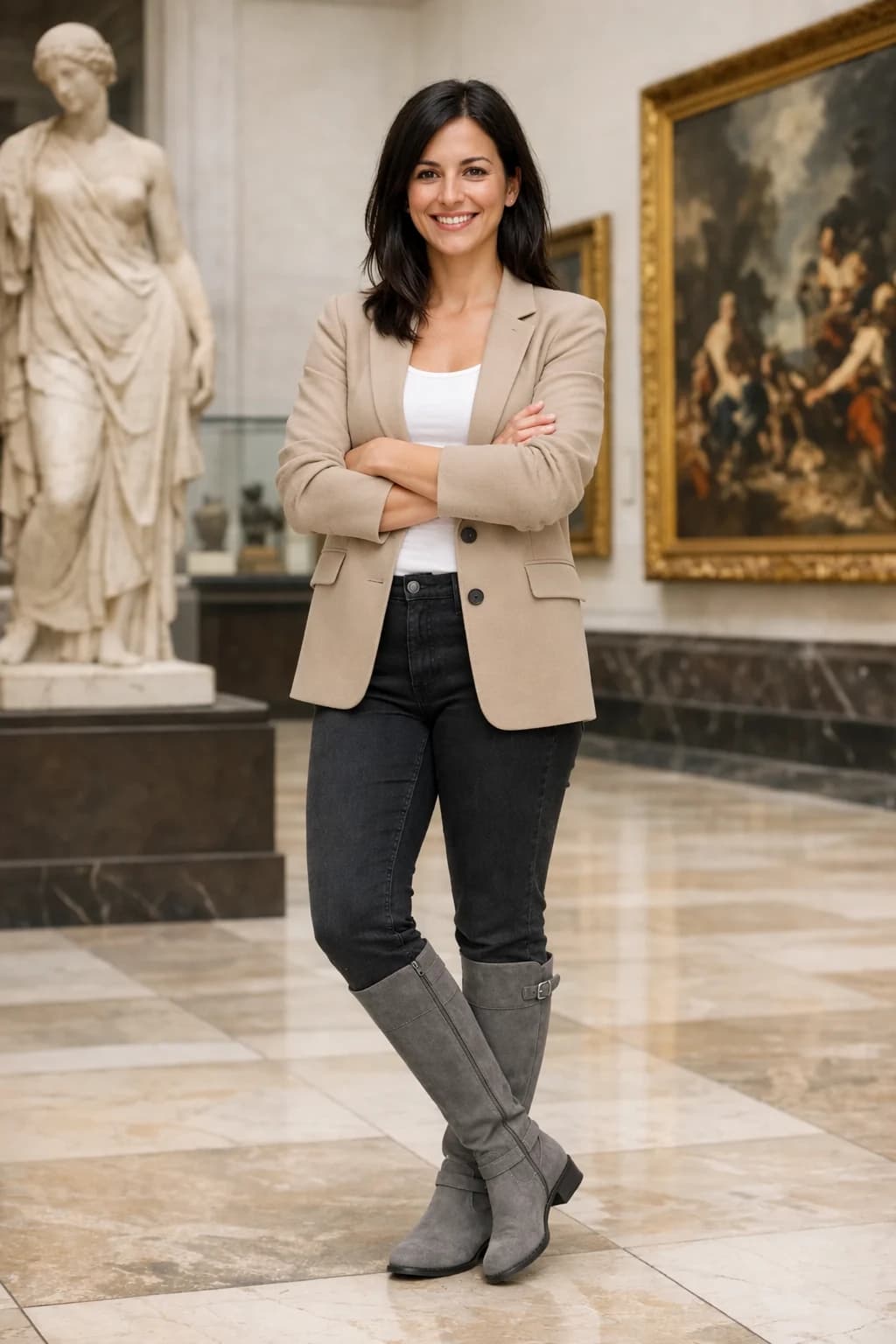
The hero image is OpenAI's official Flare output for this kind of prompt. Treat successful vendor examples as evidence of the intended capability—not a promise that every generation will reproduce the same accuracy.
Photorealistic people and materials
Describe the subject, framing, light, and texture. Avoid vague requests such as “make it realistic,” which do not tell the model what realism should look like.
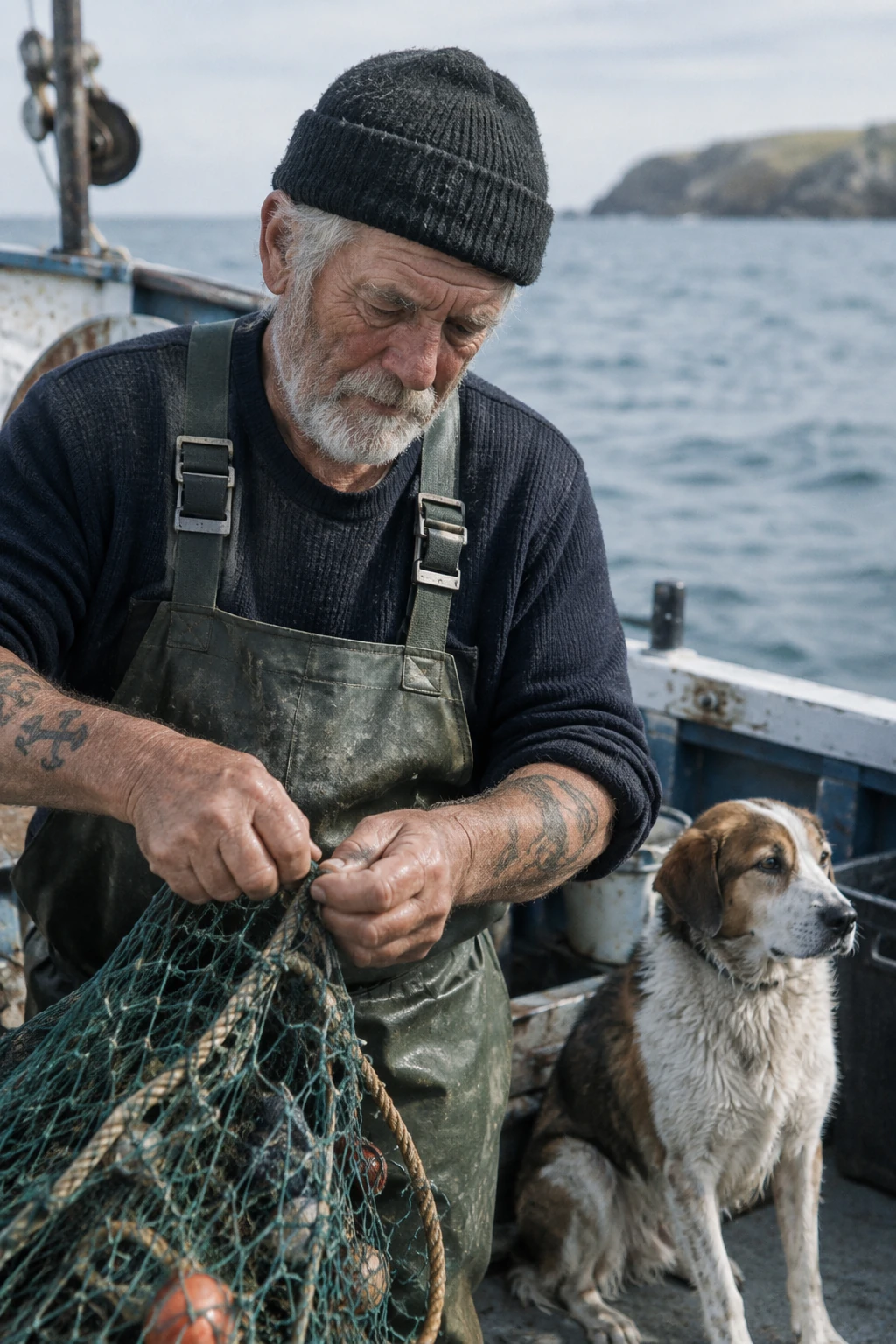
Create a candid documentary portrait of an older fisherman repairing a net.
Frame him at eye level with soft coastal daylight and a natural 50mm-lens feel.
Keep visible skin texture, worn fabric, salt-marked equipment, and subtle film grain.
The moment should feel observed rather than posed.

Avoid beauty retouching, plastic skin, dramatic studio light, and fashion styling.
Diagrams and information graphics
Flare can organize a process into a visual explanation, but image generation is not fact-checking. Supply the approved information and verify the labels, numbers, and arrows afterward.
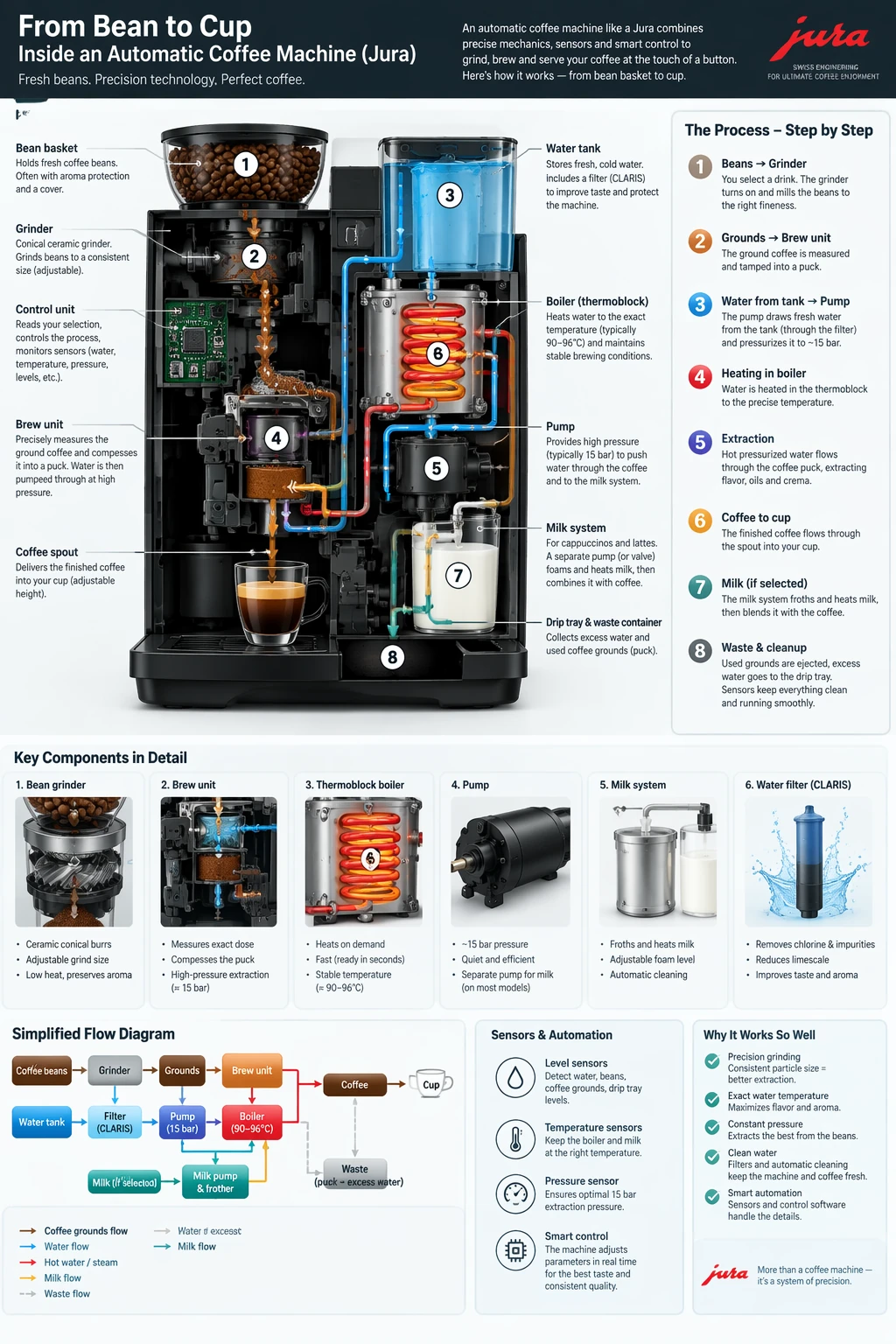
For a production infographic, provide the facts as a closed list:
Create a vertical educational infographic explaining [process] to [audience].

Use only these approved stages:
1. [stage and short explanation]
2. [stage and short explanation]
3. [stage and short explanation]
4. [stage and short explanation]

Use one numbered diagram, a clear reading order, and only the supplied labels.
Do not invent measurements, statistics, steps, citations, or brand logos.
How to prompt Flare well
OpenAI recommends starting with the image you need and then defining the subject, composition, style, and constraints. For edits, separate what should change from what must remain unchanged.
Use this reusable structure:
Create: [asset and intended use].
Subject: [who or what is in the image].
Composition: [framing, position, camera angle, and aspect ratio].
Style: [photographic or illustrative direction, light, palette, and texture].
References: [what each uploaded image controls].
Exact text: "[approved wording only]".
Preserve: [identity, geometry, product details, labels, or layout].
Avoid: [likely failure modes and unwanted additions].
Assign every reference a numbered role. “Image 1 controls the product; image 2 controls only the lighting” is much clearer than “combine these images.” For revisions, change one thing at a time and repeat the details that must not drift.
For more prompt structures, see How to write AI image prompts that work and the reference-image guide.
Flare or Sunburst?
Both models have the same Nenis controls and credit matrix. Choose by workload.
| Job | Start with |
|---|---|
| Rapid concepts and variations | Flare |
| Everyday text-to-image generation | Flare |
| A simple reference-led edit | Flare |
| Transparent product or logo drafts | Flare |
| Demanding final-image quality | Sunburst |
| Precise edits that must protect the source | Sunburst |
| Complex identity or product preservation | Sunburst |
Do not assume Sunburst is only an editor or Flare is only a generator. Both accept text and image inputs and both can generate and edit. OpenAI's recommendation is to start with Flare when speed is the priority and Sunburst when demanding quality is the priority, then measure both on your own workload.
Limits to know before generating
- 4K is available, but experimental. OpenAI labels outputs above 3,686,400 pixels as experimental. Inspect geometry, text, and detail rather than assuming a larger file is automatically better.
- Ratios stop at three-to-one. The Nenis options stay within OpenAI's maximum long-edge-to-short-edge ratio.
- Typography still needs review. Quote exact copy, prohibit extra text, and proofread the output at full size.
- Transparent output is a file setting too. Nenis switches transparent jobs to PNG so the alpha channel is preserved.
- Many references increase cost and ambiguity. Upload only images with a defined job.
- Current information must be supplied. Flare does not browse the web inside a Nenis generation.
The recommendation
Start with GPT Image 2.5 Flare for most new OpenAI image jobs in Nenis. Use 1K Medium while exploring, move to High when the direction is clear, and select 2K or 4K because the delivery needs more pixels—not because the larger label sounds safer.
Choose Sunburst when the brief becomes precision-sensitive. The advantage of having both is not finding one permanent winner; it is paying the same credit price while choosing whether the job needs faster iteration or the strongest quality-and-editing path.
Sources and image credits
- OpenAI: GPT Image 2.5 Flare model page
- OpenAI: GPT Image 2.5 prompting guide
- OpenAI: image generation guide
The campaign, sailor, and coffee-machine images are official OpenAI GPT Image 2.5 Flare showcase outputs from the prompting guide. They are vendor demonstrations, not independent Nenis benchmark results. OpenAI prices and availability can change. Nenis controls and credit prices were verified against the production catalogue on September 12, 2026.