How to Make an AI Logo as an Editable SVG File
Make a logo with AI and get a real SVG file: the prompt formula that gives clean vector shapes, why a detailed scene makes a bad logo, how to change the colours yourself, and what to check before you print it.
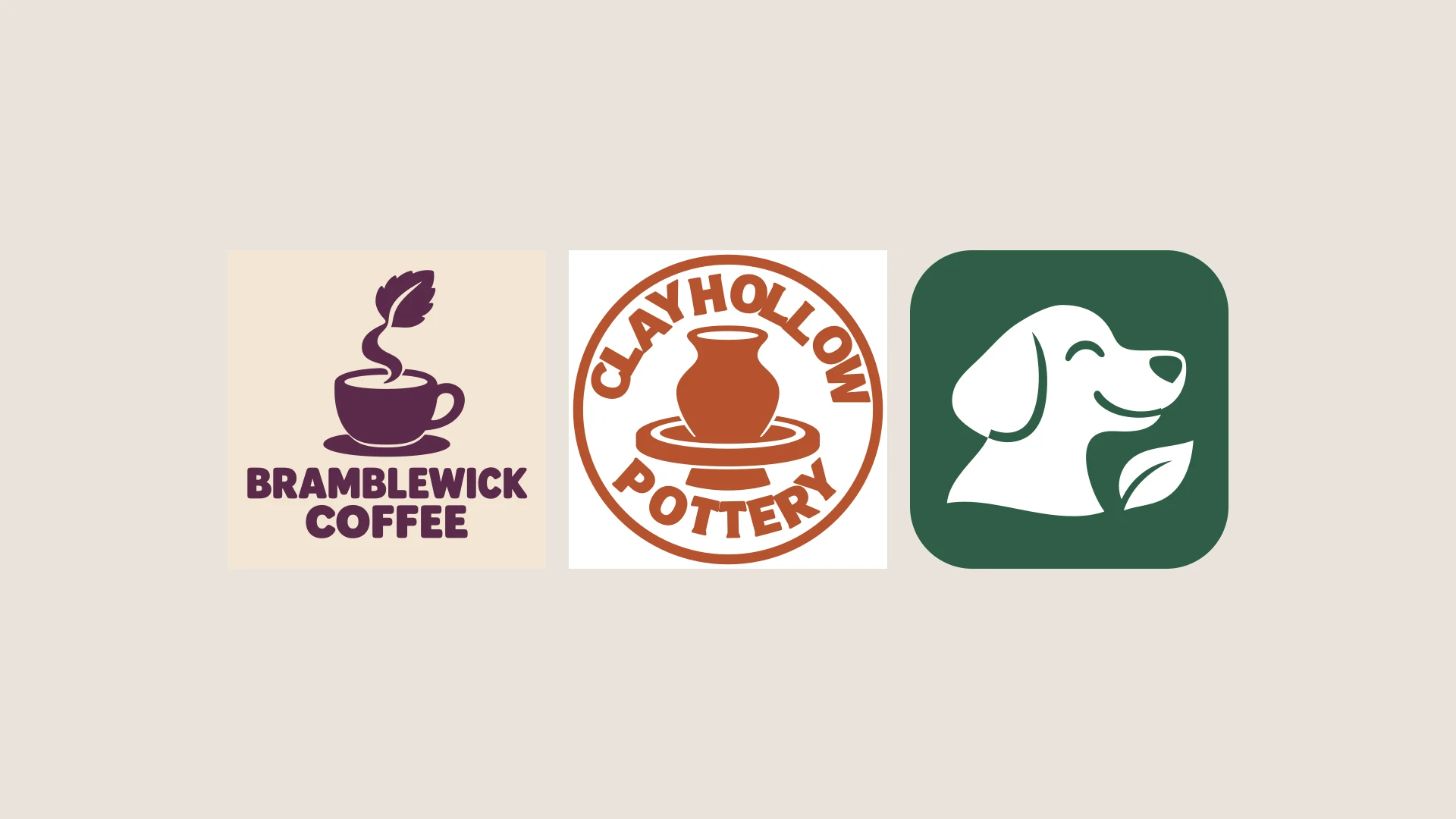
A logo for a sign, a cup sleeve or a website needs to stay sharp at any size, which is what an SVG file does. AI can now make one directly: you describe the logo, and you get a vector file instead of a picture.
The short version: in Nenis, choose GPT Image 2.6 Flare, set the format to Vector, and describe a flat logo with a few bold shapes and two or three colours. You get an SVG for 15 credits at High quality. The three logos above came from three prompts, all shown below.
The quick version
- Open Create and choose GPT Image 2.6 Flare. Remove any attached photos, since an SVG starts from words.
- In the Format menu choose Vector, then pick a square
1:1shape and High quality. - Describe a logo, not a scene: one simple symbol, the name in capitals, two or three colours, plain background.
- Download the
.svgfile. - Check every letter, shrink it to icon size, and change the colours in any text editor if you want a variant.
Why an SVG and not a PNG
A PNG is a grid of coloured squares. Enlarge it and the squares show. An SVG is a list of shapes, such as "a curve from here to here, filled purple", so a screen or a printer redraws it sharp at any size, from a 16-pixel browser tab to a shop sign.
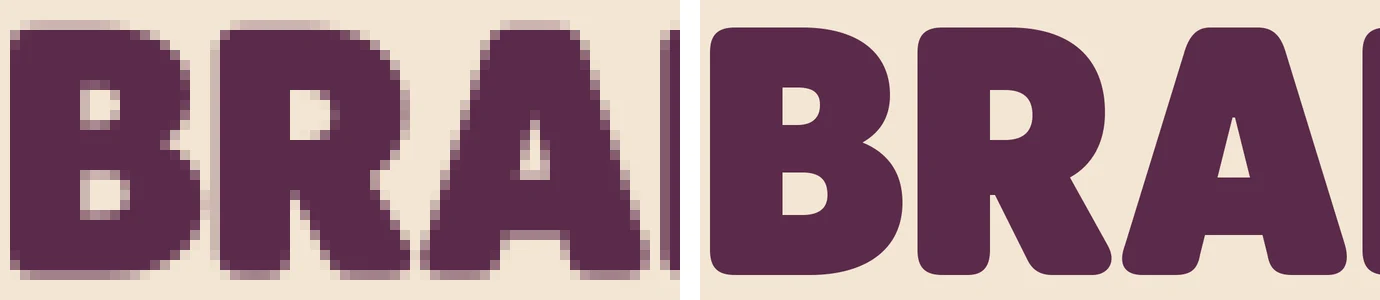
Printers, sign makers and web designers will usually ask for a vector file, and an SVG opens in free tools as well as professional ones. It is also small: the coffee logo here is 7 KB.
When you choose Vector, OpenAI first draws the logo as a picture, then a second model traces that picture into shapes. Nenis asks the model to draw every letter as a shape rather than as typed text. That way the name looks the same on every screen and printer, and nobody needs your font installed to see it.
Ask for a logo, not an illustration
The most common first try describes a whole scene. This was the prompt:
A logo for Bramblewick Coffee, a small coffee cart: a vintage coffee cart with a striped awning and big wooden wheels, standing on a cobbled street between bramble bushes full of blackberries, with steam rising from two cups on the counter and the words Bramblewick Coffee in elegant script.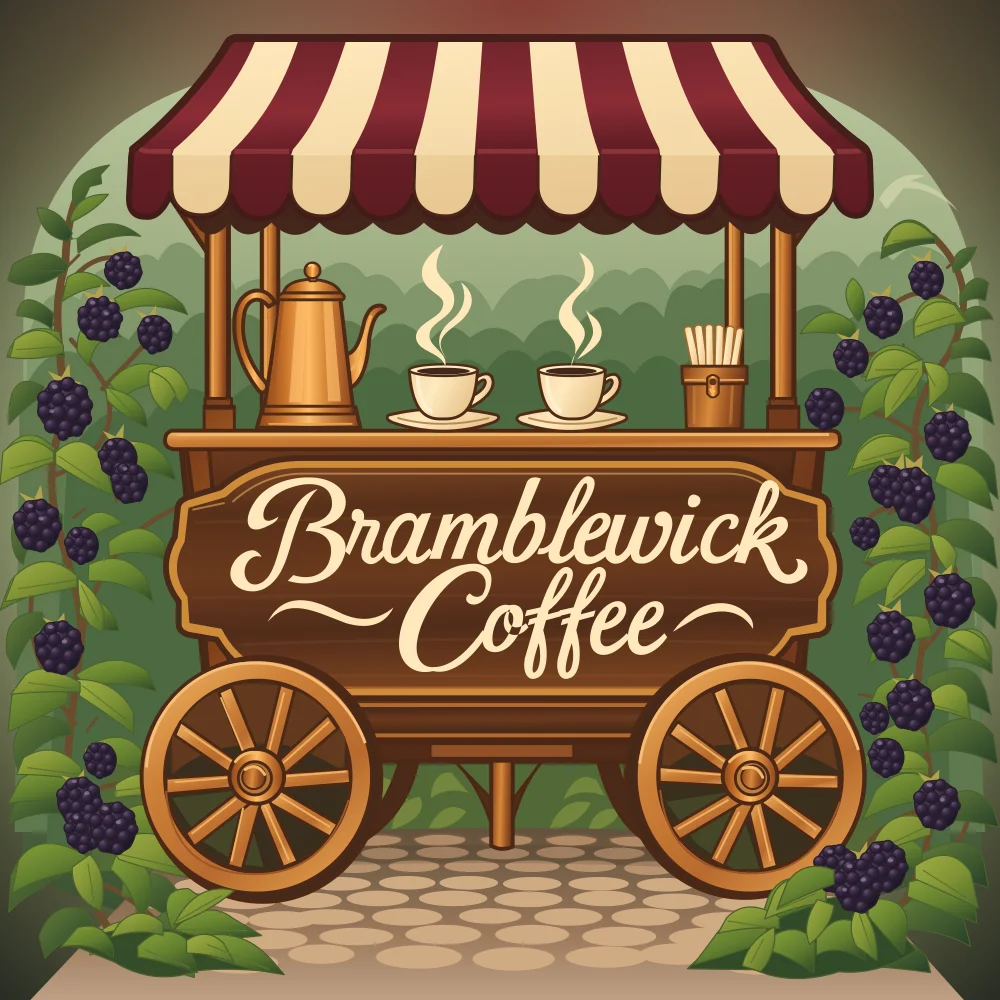
It's a nice illustration, but it isn't a logo. The file holds about 800 shapes and weighs 58 KB; the simple logo further down needs about 20 shapes and 7 KB. The real test is size, because a logo lives small: on a stamp, a receipt, a browser tab.
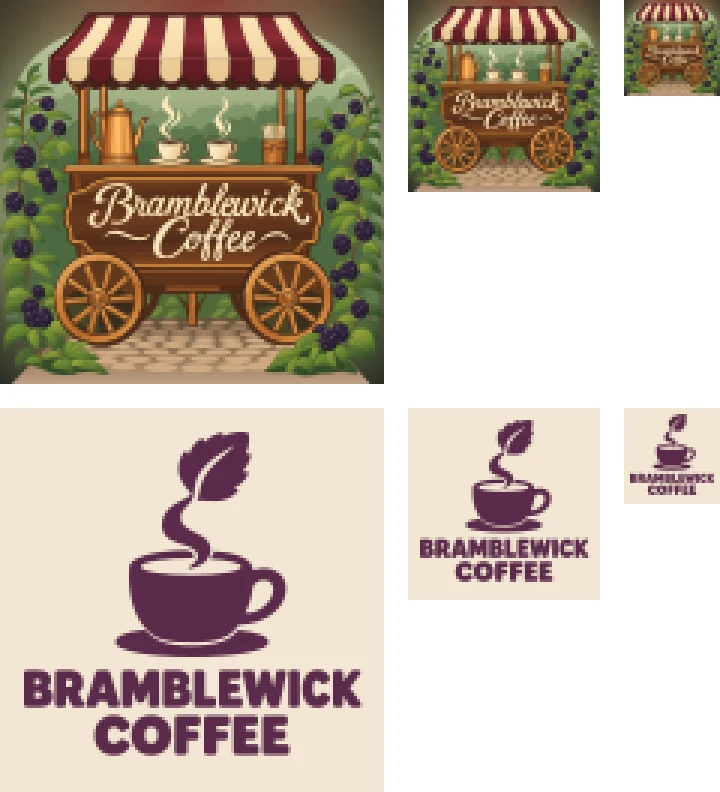
At 32 pixels the illustration is a coloured smudge, while the simple cup still reads as a cup. No name is readable at that size, which is why a favicon uses the symbol alone.
A prompt formula that works
Build the prompt from these parts, in this order:
| Part | What to write | Example |
|---|---|---|
| Kind of logo | Flat vector logo, badge, or app icon | "A flat vector logo for..." |
| Who it's for | The name and what the business does | "...Bramblewick Coffee, a small coffee cart." |
| One symbol | A single idea, drawn simply | "A coffee cup whose steam curls up into a single bramble leaf" |
| The name | In capitals, with a letter style | "BRAMBLEWICK COFFEE in a bold, rounded sans-serif" |
| Colours | Two or three, as hex codes | "deep berry purple #5B2A4A and warm cream #F3E6D3" |
| Limits | What to leave out | "Thick, even shapes, no gradients, no shadows, no textures, no fine detail." |
| Layout | Background and placement | "On a plain cream background. Centred, with space around it." |
Hex codes are worth the trouble. The model used the exact colours it was given, which makes the file easy to edit later. Here are the three logos from the top of this guide:
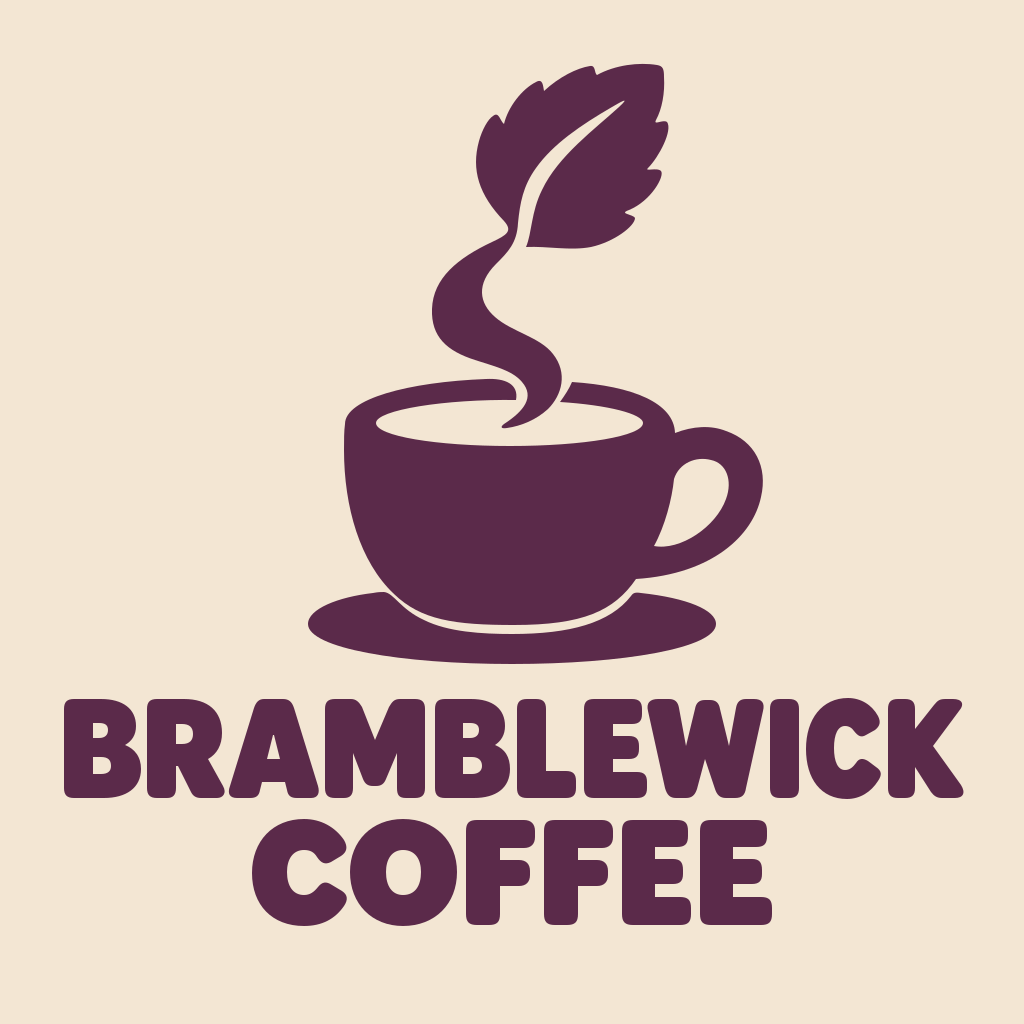
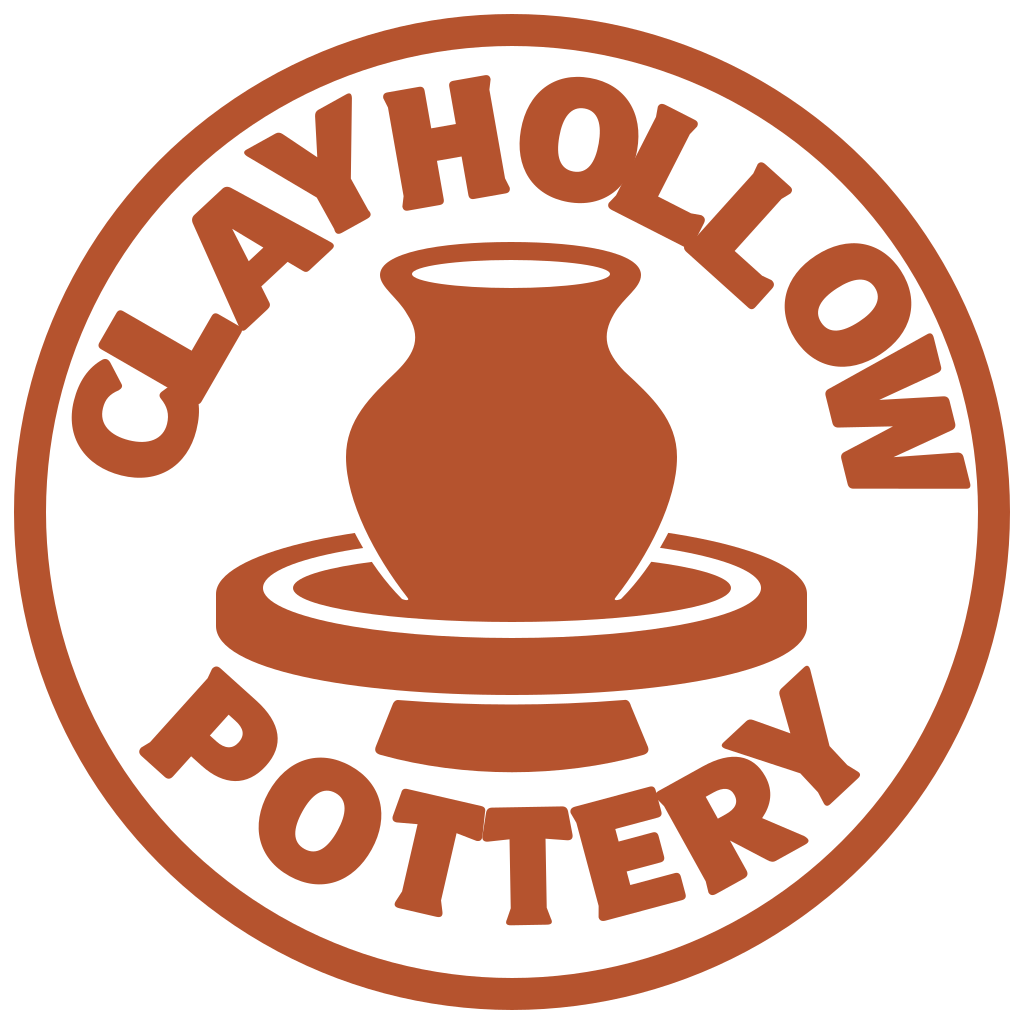
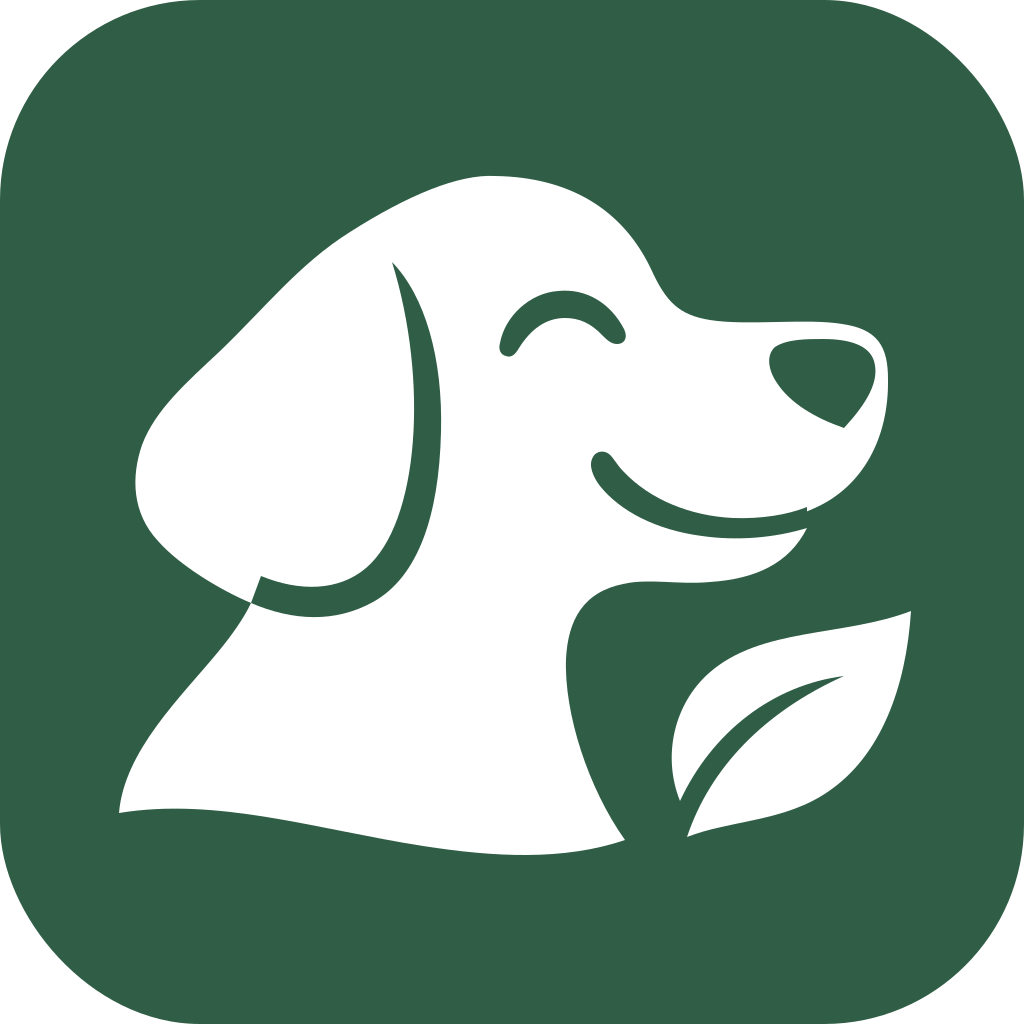
A logo with a name, the one built in the table:
A flat vector logo for Bramblewick Coffee, a small coffee cart. A simple icon of a coffee cup whose steam curls up into a single bramble leaf, above the words BRAMBLEWICK COFFEE in a bold, rounded sans-serif. Two colours only: deep berry purple #5B2A4A and warm cream #F3E6D3, on a plain cream background. Thick, even shapes, no gradients, no shadows, no textures, no fine detail. Centred, with space around it.A round badge, for stamps, stickers and packaging:
A flat vector badge logo for Clayhollow Pottery, a small pottery studio: a circular stamp with the word CLAYHOLLOW around the top edge and POTTERY along the bottom edge, and in the centre a simple vase on a potter's wheel drawn with a few bold shapes. One colour only, terracotta #B5532E, on a plain white background. Thick, even lines, no gradients, no textures, no small details. Centred.An app icon, a symbol with no words, for apps, profile pictures and favicons:
A flat vector app icon for Wanderpaw, a dog-walking business: a rounded square in forest green #2F5D46 with a simple, friendly white dog head in profile and one small white leaf, made of a few bold shapes. No text, no gradients, no shadows, no fine detail. Centred.Change the colours yourself
An SVG is plain text, so you can open it in Notepad, TextEdit or any code editor. The coffee logo has its colours in four lines:
<rect id="background" width="1024" height="1024" fill="#F3E6D3" />
<g id="coffee-icon" fill="#5B2A4A">
<g id="bramblewick-lettering" fill="#5B2A4A" fill-rule="evenodd">
<g id="coffee-lettering" fill="#5B2A4A" fill-rule="evenodd">
Find and replace #5B2A4A and #F3E6D3 with other colours, save, and you have a new version. These four took a few seconds each:
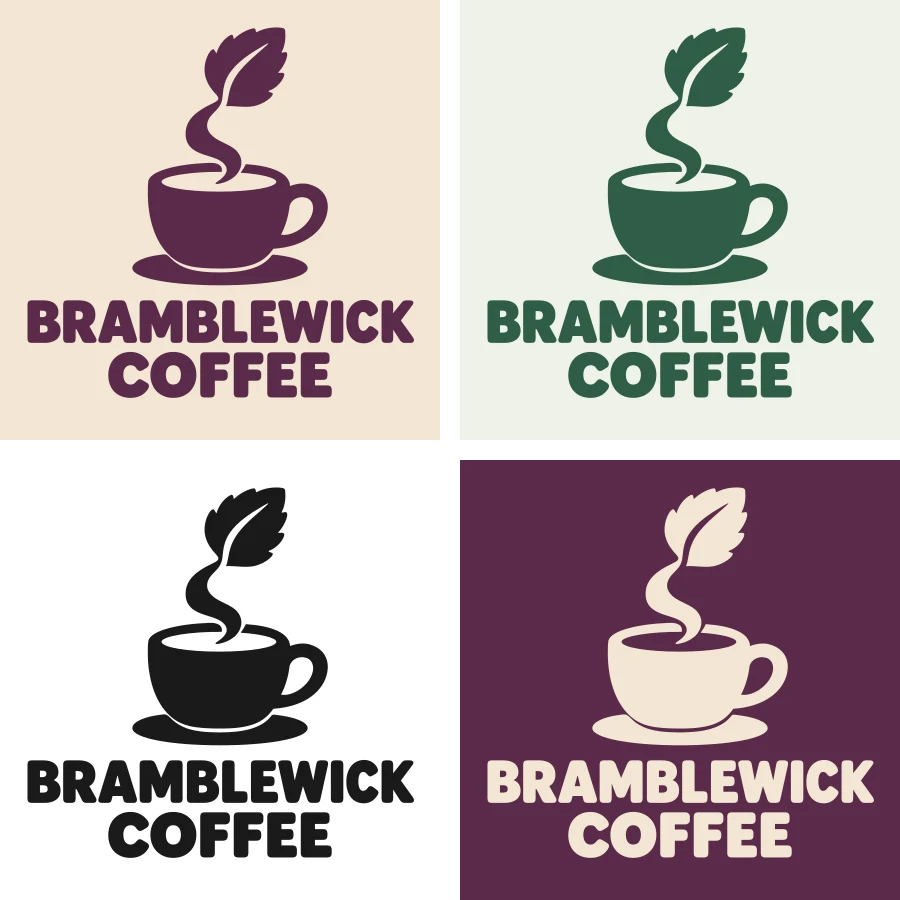
Make the black-on-white one early: a rubber stamp, a receipt printer or a one-colour print run can only use one colour. To move or resize parts, open the file in a free vector editor such as Inkscape. Because the letters are drawn as shapes, you can't retype them. To change a letter, generate the logo again, or set the name in an editor with a font you're licensed to use.
Check it before you print it
- Read every letter. AI still misspells names, so read it slowly and out loud.
- Shrink it. Look at it at 32 pixels and at 1 cm on paper. If the symbol stops making sense, simplify the prompt.
- Try one colour. If the logo falls apart in black on white, it depends on colour too much.
- Search the name and the look. Check that nobody already trades under something similar. TMview searches trade mark registers across the EU and beyond for free, and the USPTO search covers the US. A clean search doesn't guarantee the name is free to use, so ask a professional before a big launch.
- Know what you own. In the US, the Copyright Office's 2025 report says purely AI-generated material isn't protected by copyright, and prompts alone don't make you its author; your own creative changes and arrangement can be. Rules differ by country, and trade mark registration is a separate route. Ask a lawyer before you build a brand on it.
Credits
An SVG always comes from one 1K drawing, so size doesn't apply; only the quality changes the price.
| GPT Image 2.6 Flare, Vector | Credits |
|---|---|
| Low | 11 |
| Medium | 14 |
| High | 15 |
High costs one credit more than Medium and draws the cleanest reference picture, so it is the one to use for a logo. The one-time €1.99 trial pack has 100 credits: six logos at High, enough to try a few directions and keep the best. For every GPT Image 2.6 price and its other formats, see the GPT Image 2.6 guide.
The recommendation
Describe a logo, not a picture: one symbol, the name in capitals, two or three hex colours, and a list of what to leave out. Choose Vector at High, read every letter, shrink it to icon size, and keep a one-colour version. Search the name before you print a single sticker.
Sources and image credits
The logos were generated for this guide on November 21, 2026 with GPT Image 2.6 Flare at High quality, from the prompts shown. The businesses are invented. The colour versions were made by changing the colour values in the SVG file, and the enlargement and shrink tests were rendered from the same files. SVG output is described in OpenAI's image generation guide. The copyright point is from the US Copyright Office's Copyright and Artificial Intelligence, Part 2: Copyrightability (January 2025). Credit prices were checked against the Nenis model catalogue on November 21, 2026.